
16. Sales: cart and orders by WhatsApp
With sales on, visitors add products to a cart from the tour or your page, choose pickup or delivery, apply a coupon and send the order. You receive it under Orders and handle it through to delivery. There is no online payment: you charge as usual (transfer, cash or card terminal) and confirm on WhatsApp. Included in paid plans.
Turn sales on
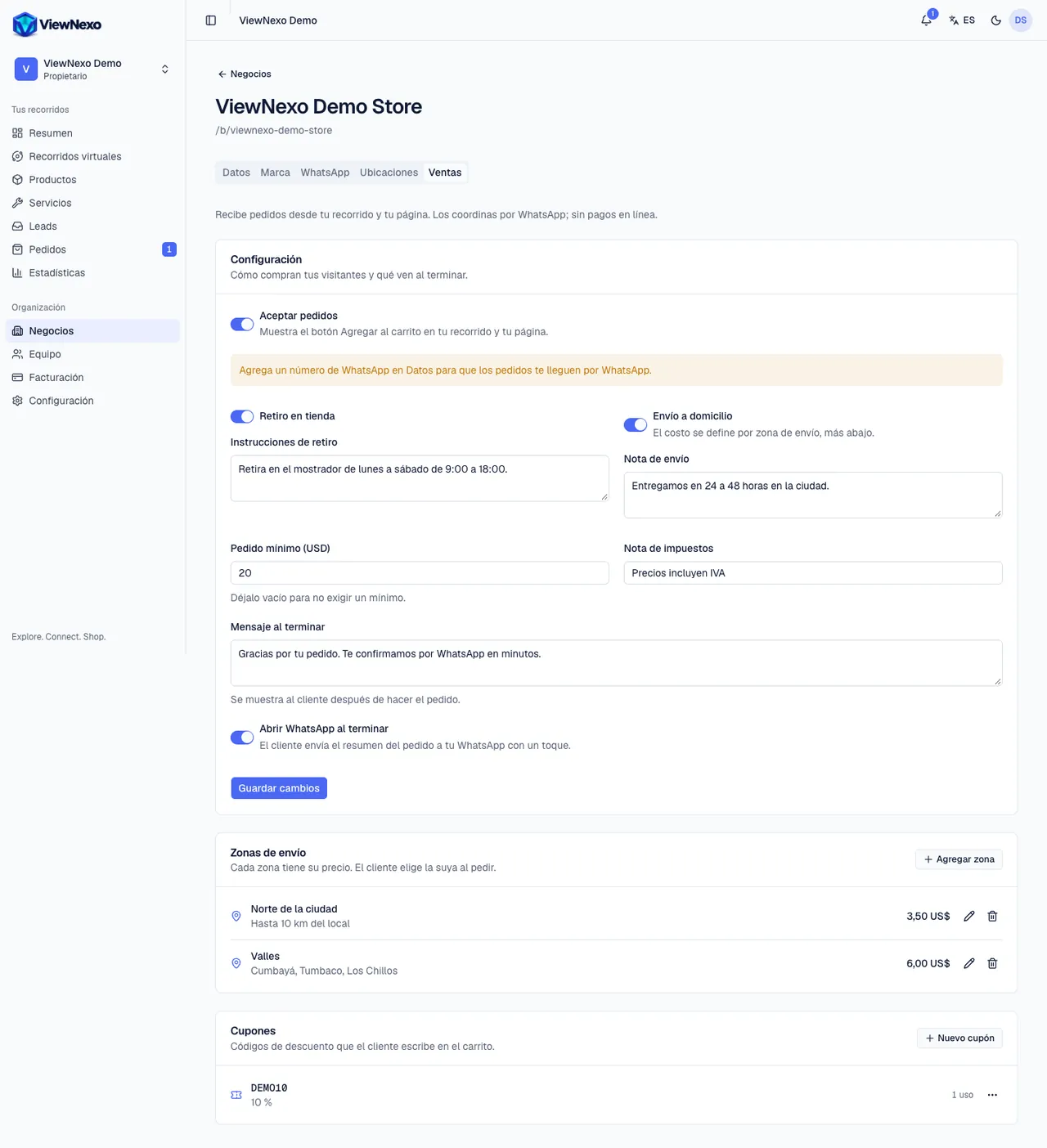
- In the left sidebar, click Businesses and open your business.
- Click the Sales tab at the top. If your plan doesn't include orders, you will see the notice and the See plans button.
- Turn on Accept orders. This shows the Add to cart button in your tour and your page.
- If the yellow notice "Add a WhatsApp number in Details…" appears, go to the Details tab and enter your WhatsApp with the country code (chapter 7).
- Store pickup: turn it on if customers can come and collect. In Pickup instructions write hours, address and what they should show.
- Home delivery: turn it on if you deliver. In Delivery note write, for example, "We deliver Monday to Saturday within 24 to 48 hours". The cost is set per zone (next section).
- Minimum order: the minimum amount to accept an order. Leave it empty for no minimum.
- Tax note: for example "Prices include VAT". It is shown under the total.
- Message after ordering: what customers see after ordering, for example "Thank you! We'll confirm on WhatsApp in a few minutes".
- Open WhatsApp after ordering: keep it on so customers send you the order summary on WhatsApp with one tap.
- Click Save changes. At least one delivery method must be on to receive orders.
Shipping zones and coupons
- Shipping zones (below the settings): click Add zone.
- Enter the Name (for example North side), the Description with the neighborhoods it covers and the shipping Price. Leave the switch on Active and click the check mark (✓) button to save.
- Create one zone per different price, for example North 3.50 and Valleys 6.00. Customers pick their zone when ordering and the shipping is added to the total.
- The pencil edits a zone and the trash can deletes it; existing orders keep the zone's name and price.
- Coupons: click New coupon.
- Code: letters and numbers, no spaces, for example WELCOME10 (stored upper-case). Type: Percentage or Fixed amount. Value: for example 10.
- Optional: Minimum purchase, Valid from and Valid until, and Max uses (empty = unlimited). Leave the coupon Active and save.
- The list shows how many times each coupon was used, or whether it is Expired. The three dots (⋯) let you Edit or Delete; orders that used it keep their discount.
Share the coupon code on your social media or WhatsApp status together with the tour link: customers type it in the cart.
What your customer does
- They tap a product in the tour (or on a shelf), pick the Option if it has variants and the Quantity, and tap Add to cart.
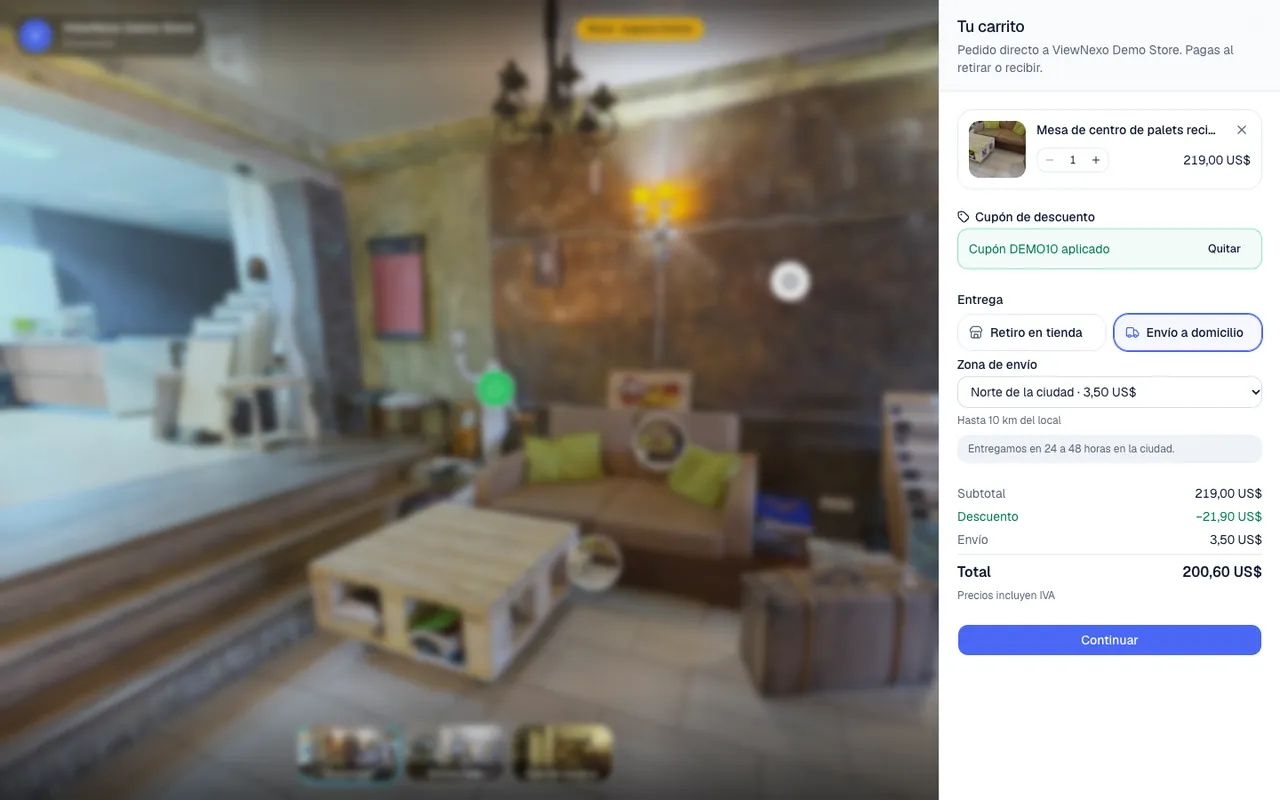
- They tap the floating cart. In Your cart they see the products, can raise or lower the quantity and remove products. The panel reminds them the order goes directly to your business and that they pay on pickup or delivery.
- If they have a coupon, they type it under Discount coupon and tap Apply.
- Under Delivery they pick Store pickup or Home delivery and, for delivery, their Delivery zone. The total updates instantly.
- They tap Continue and fill in Your details: Full name, Phone / WhatsApp, Email (optional) and, for delivery, the address (street and number, city, reference). They can leave notes for the business.
- They agree to be contacted and tap Send order.
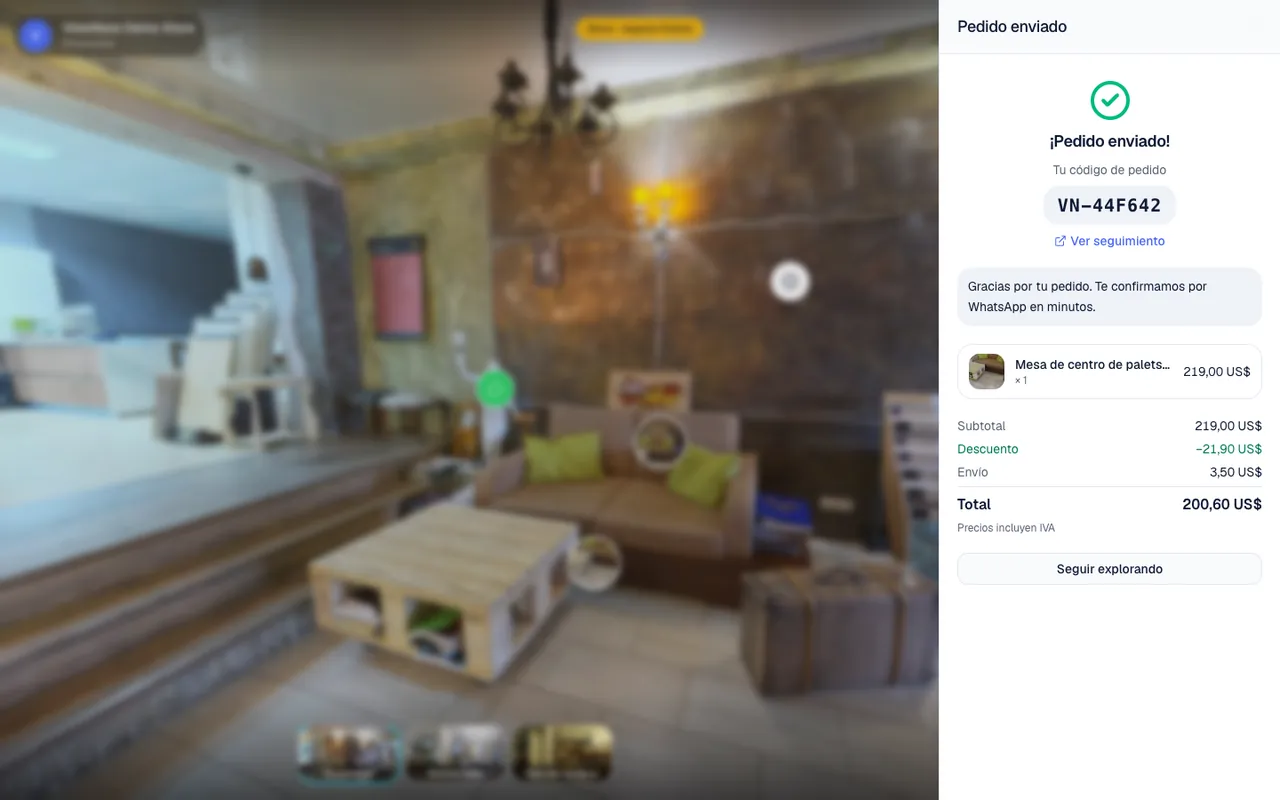
- They see Order sent!, their code (VN-XXXXXX), the Track order link, your Message after ordering and, if you have WhatsApp under Details, the Send order via WhatsApp button that opens a chat with you with the summary ready.
- The tracking page (viewnexo.com/b/your-business/pedido/CODE, with its private link) shows the status, the products, the delivery and your contact details. It updates every time you change the status.
- No account needed: they order as a guest with name and phone, and the cart stays saved in their browser for next time.
- Inventory: if a product or variant has units, every order deducts them instantly and a cancelled order returns them. Out-of-stock products cannot be ordered.
The tracking page
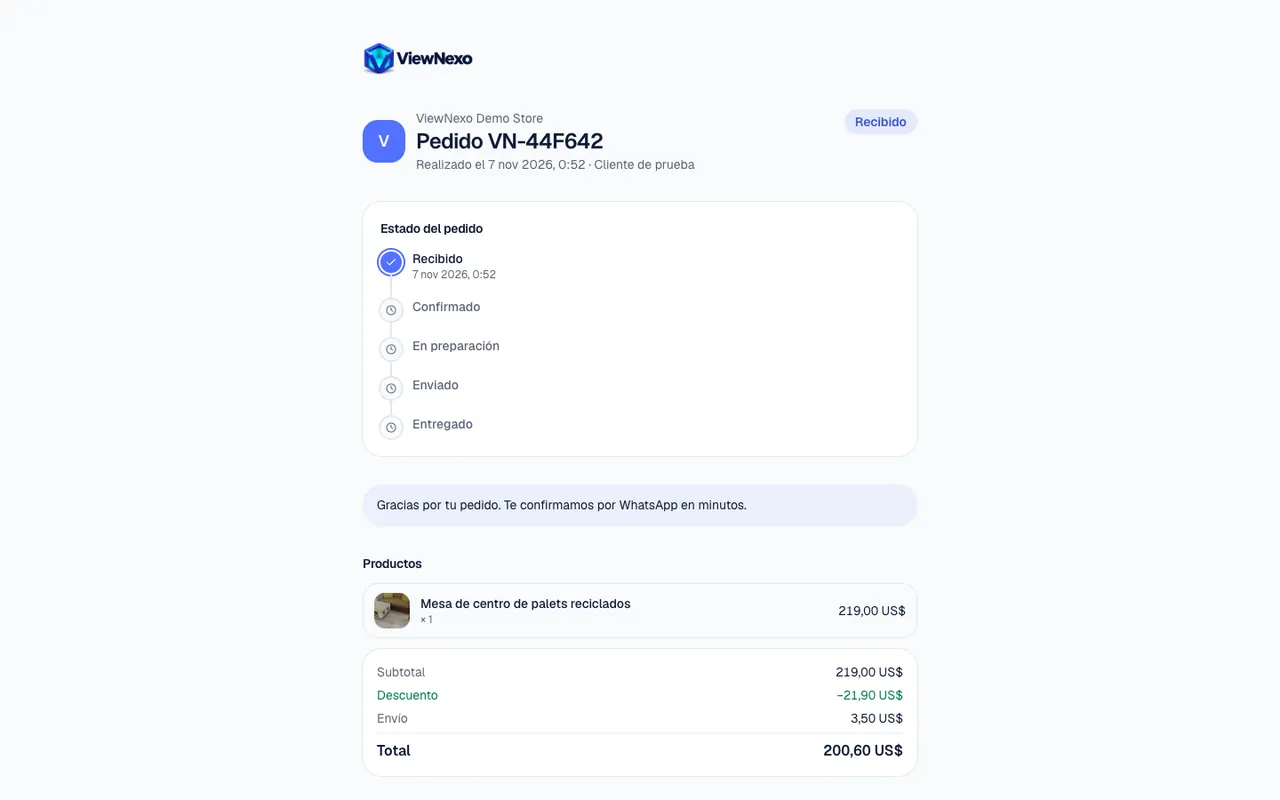
This is how your customer sees their order. Every time you click a new status in the dashboard, the next step is marked here with the date and time.
Handle an order step by step
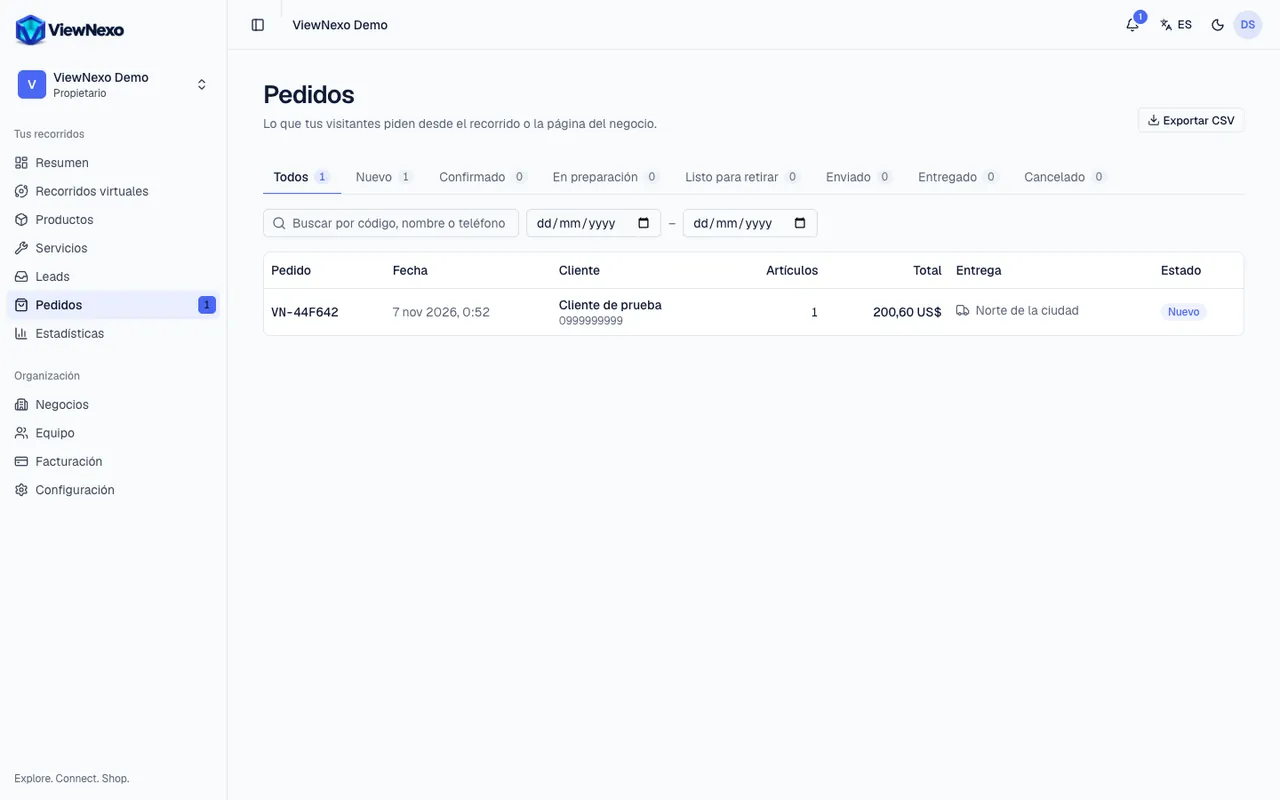
- You find out three ways: a notice in the bell, an email with a button to open the order, and a blue number next to Orders in the left sidebar.
- Click Orders. At the top are the All, New, Confirmed, Preparing, Ready for pickup, Shipped, Delivered and Cancelled tabs, each with its counter.
- To find an order use Search by code, name or phone, or pick dates in From and To. Clear filters shows everything again.
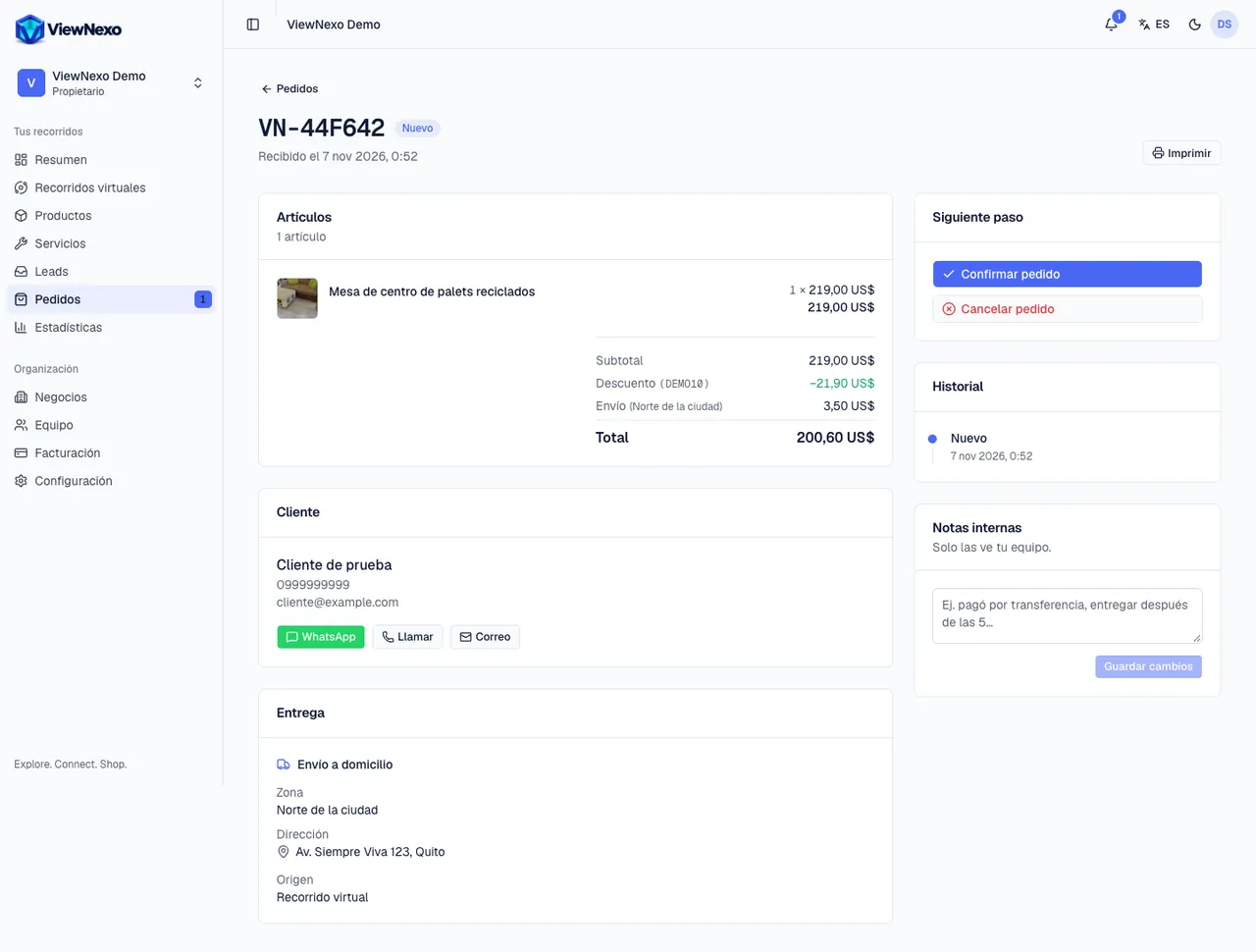
- Tap the order's row. The detail opens.
- Check Items: each product with its quantity and price, the Subtotal, the Discount (with the coupon), the Shipping (with the zone) and the Total.
- Under Customer are their name, phone and email, and the WhatsApp, Call and Email buttons. Write to them to confirm the order and agree how they will pay.
- Under Delivery you see whether it is Store pickup or Home delivery, the zone, the address and the reference.
- Under Next step, on the right, click Confirm order. If the customer left an email, they receive the confirmation.
- When you start putting it together, click Start preparing.
- When it is ready: for pickup, click Ready for pickup; for delivery, click Mark as shipped when it leaves.
- When the customer receives it, click Mark as delivered. The order is closed.
- Internal notes: write what only your team should see (for example "paid by transfer") and click Save changes.
- To cancel, click Cancel order, write the Reason (optional, for example "out of stock") and confirm with Cancel order. The stock goes back to inventory and, if the customer left an email, we notify them with the reason. You can cancel as long as it is not Shipped or Delivered.
- Print, top right, opens the Order receipt ready to print or save as PDF; it works as a picking list.
- Status flow: New → Confirmed → Preparing → Ready for pickup (pickup) or Shipped (delivery) → Delivered. Every change is recorded in the History with its date and time.
- Only owners and managers can change the status and export orders.
Reply to the order's WhatsApp and confirm it in the dashboard within minutes: the customer gets the confirmation email and stops wondering whether it arrived.
Notices and figures
- Every new order reaches the bell and the owners' and managers' email (emails are turned off under Settings, Notifications section). When you mark it delivered, it also appears in the bell.
- Your customers get an email when they order (with the tracking link) and at every status change: confirmed, ready or shipped, delivered or cancelled. Only if they left their email.
- The Overview and Analytics, Sales section, show Orders, Revenue, Average ticket, Cancelled, the Conversion (orders vs. visits), Orders per day, Revenue per day, Best-selling products and Pickup vs. delivery.
- Export CSV, under Orders, downloads the orders with the chosen filters for your accounting.