
5. Finding your way around the dashboard
When you sign in you see the Overview: a greeting with your name and how your tours are doing over the last 30 days. From here you reach everything else.
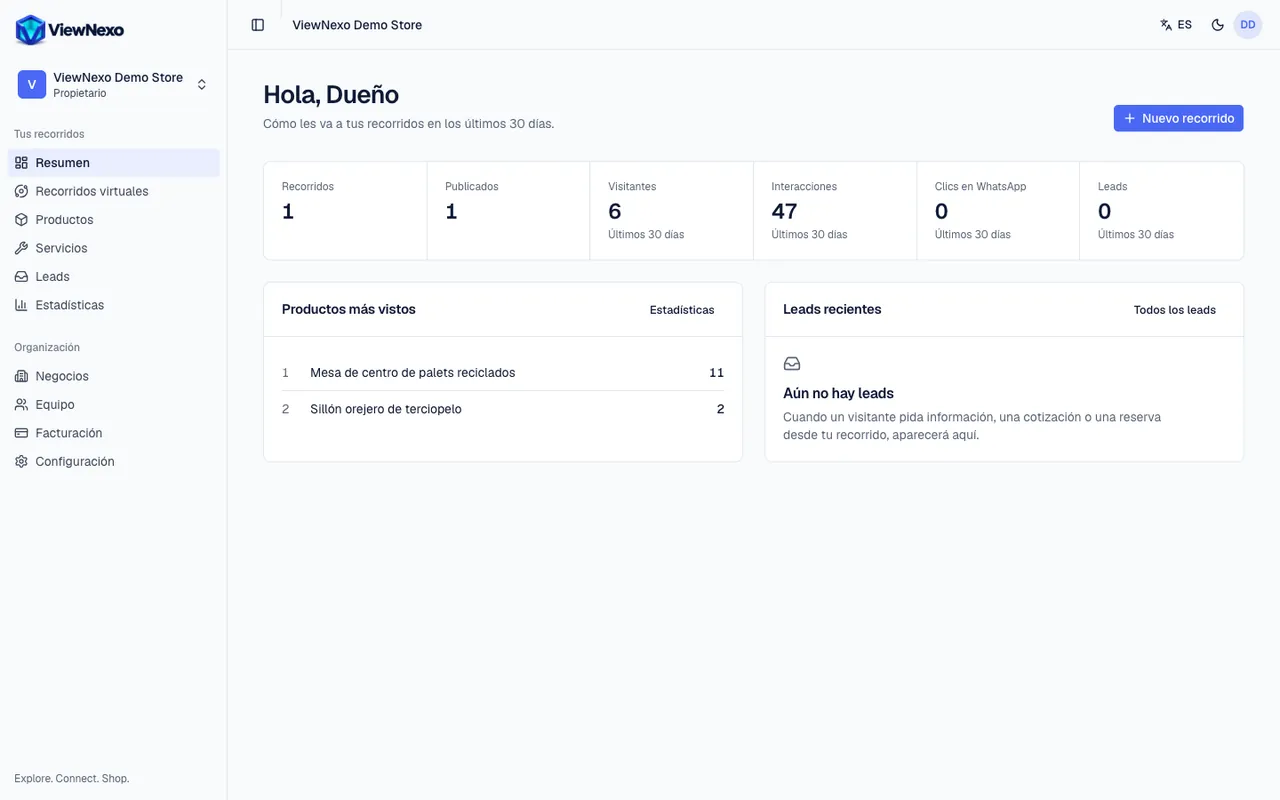
The Overview
- Get your first tour online: until you finish the initial setup, this card appears at the top with the five steps and how many you have done. Its button says Start setup the first time and Continue afterwards; it takes you straight to the pending step (chapter 6).
- Last-30-day figures: Tours, Published, Visitors, Interactions (taps on points), WhatsApp clicks and Leads.
- Most viewed products, with the Analytics link; and Recent leads, with the All leads link.
- If you have Sales turned on, you also see orders, revenue, average ticket and cancelled orders, with View orders (chapter 16).
- The blue New tour button, at the top right, creates another tour without going through the initial setup.
The sidebar (left)
It is the main menu. Press any name to go to that section; the section you are in is highlighted.
- At the top: the ViewNexo logo (takes you back to the Overview) and your organization's name with your role. If you belong to several organizations, press it to switch between them or create a new one.
- Finish setup: shown while the initial setup is not complete.
- Your tours group: Overview, Virtual tours, Products, Services, Leads, Orders and Analytics.
- Organization group: Businesses, Team, Billing, Settings and Support.
- A blue number next to Orders means new orders; next to Support, unread replies.
- What you can change in each section depends on your role (owner, manager or editor; chapter 19).
The top bar
From left to right:
- A button with a split square: shows or hides the sidebar. On a computer it shrinks it to icons only, to make room.
- Your organization's name.
- A star with sparkles: opens the Assistant, an AI chat that helps you inside the dashboard (chapter 17).
- The notification bell (see below).
- The ES/EN language button (chapter 4).
- A moon or a sun: switches between light and dark mode. It is just a matter of taste.
- The circle with your initials: your account menu, with Account settings, Report a problem and Sign out.
- Business switcher: if you have two or more businesses, screens such as Products and Services show a list at the top right to choose which one you are working on.
On a phone
- On a small screen the sidebar is hidden to save space.
- To open it, tap the split-square button at the top left.
- Tap the section you want. The sidebar closes by itself and that screen opens.
- To close it without choosing, tap outside it, on the darkened area.
The notification bell
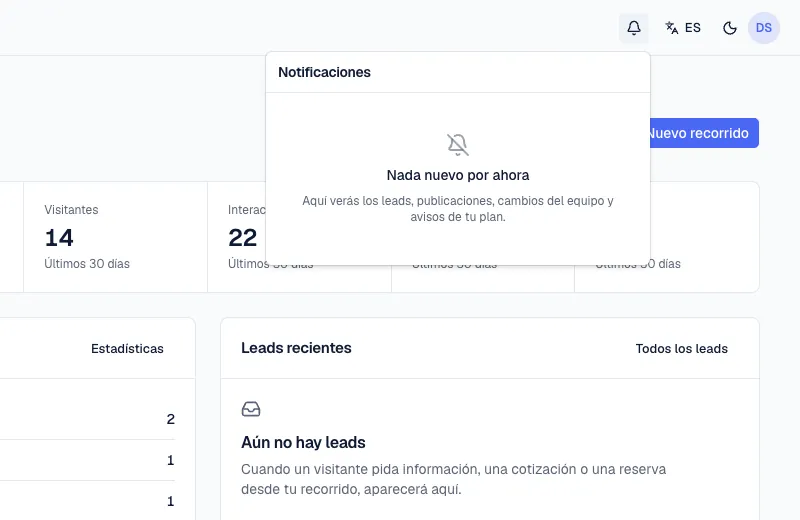
- A number on the bell shows how many notices you have not read. Press it to see the list.
- It gathers what happens in your organization: new leads and orders, tour published or unpublished, scene ready or failed, team and plan changes, support replies and warnings when storage nears the limit.
- Press a notice to go to the related screen. Mark all as read marks them all as read.
- When it is empty you will see Nothing new for now.
Going back
- Use the browser's back arrow (top left on a computer; on Android, also the phone's back button).
- Many screens have a link with an arrow at the top, such as ← Virtual tours, that takes you back to the list.
- And you can always press Overview in the sidebar to return to the start.
If a screen shows This couldn't be loaded, press Try again or reload the page. Your data is not lost.