
15. Leads: people who ask you for something
A lead is a potential customer who left their details from the tour: they asked for information, a quote, a booking or to be contacted. It is like a "call me" note that lands in your dashboard with their name, phone or email and the product or service they were interested in.
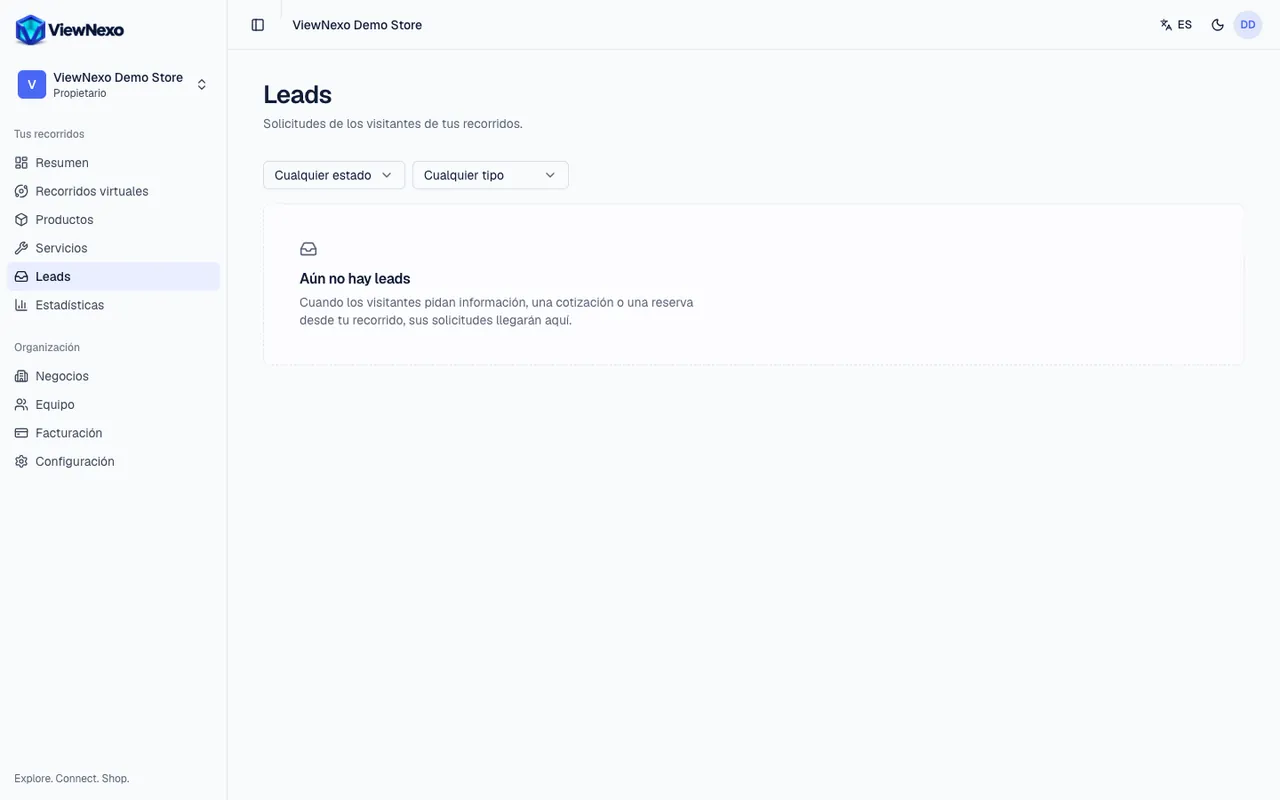
- Types: Information, Quote, Booking and Contact.
- Statuses: New, Contacted and Closed. Change them as you go so you know what you still have to answer.
- Source: Virtual tour, Business page or Embedded tour (when the tour is inside your website).
- Instant notice: every new lead is emailed to the organization's owners and managers, with the visitor's details and a button to open it, and appears in the bell at the top. The email is turned off under Settings, Notifications section, New leads switch.
- The most recent ones also appear on the Overview.
WhatsApp clicks don't create leads: the visitor writes straight to your number and the conversation continues in your WhatsApp.
Answer a lead step by step
- When the email arrives or you see the notice in the bell, click the email's button or the notification. You can also go through the left sidebar, Leads.
- In the list, each row shows Contact, About (the product or service), Type, Status and the date it was Received. Tap the lead's row.
- A panel opens on the right with the name, type and date. Read About, the Preferred date (for bookings) and the Message.
- To call: click the button with the phone number. On a phone the call starts; on a computer, your calling app opens if you have one, or dial the number by hand.
- To write on WhatsApp: click the WhatsApp button. A chat with that number opens (on a computer, WhatsApp Web or the desktop app). Introduce yourself: "Hi Maria, this is Ana from Central Café. I saw you asked about the 500 g ground coffee…".
- To send an email: click the button with their email. Your email program opens with the address filled in.
- Once you have answered, under Status (at the bottom of the panel) pick Contacted. You will see the Status updated message.
- When the sale or booking happens, or the person is no longer interested, change the Status to Closed.
Answer within the first hour if you can: someone who asked for a quote is usually deciding right then. Only owners and managers can change the status.
Filter and export your leads
- Above the list, Any status lets you see only the New ones (those you haven't answered), the Contacted or the Closed.
- Any type shows only Information, Quote, Booking or Contact. If you have several businesses, All businesses also appears.
- Export CSV, top right, downloads the leads with the filters you chose, for your CRM or a spreadsheet. You will see the Leads downloaded message and the file lands in Downloads.
- Export is included in the plans with Lead export and can be used by owners and managers. If your plan doesn't have it, the button is greyed out and hovering over it tells you why.