
2. Opening the ViewNexo dashboard
The dashboard is a web page: there is nothing to install. You just open the browser and type the address app.viewnexo.com.
There are two addresses and it is normal to mix them up. viewnexo.com is the public site anyone can see: it explains the service, shows prices and hosts this tutorial. app.viewnexo.com is your private dashboard, where you create and manage your tours. To work, always go to app.viewnexo.com.
On a computer
- Find the browser. On Windows, look at the bar along the bottom of the screen or press the Start button (the Windows logo, bottom left) and type Chrome or Edge. On a Mac, look in the Dock (the row of icons at the bottom) or open Launchpad and look for Safari or Chrome.
- Double-click the icon (or click once if it is in the bottom bar or the Dock). A window opens.
- At the top of the window there is a long strip with text: the address bar. Click inside it; the text there turns blue.
- Type app.viewnexo.com exactly, all together and without spaces. You do not need www or https.
- Press the Enter key (called return on a Mac). In a few seconds the dashboard's Sign in screen appears.
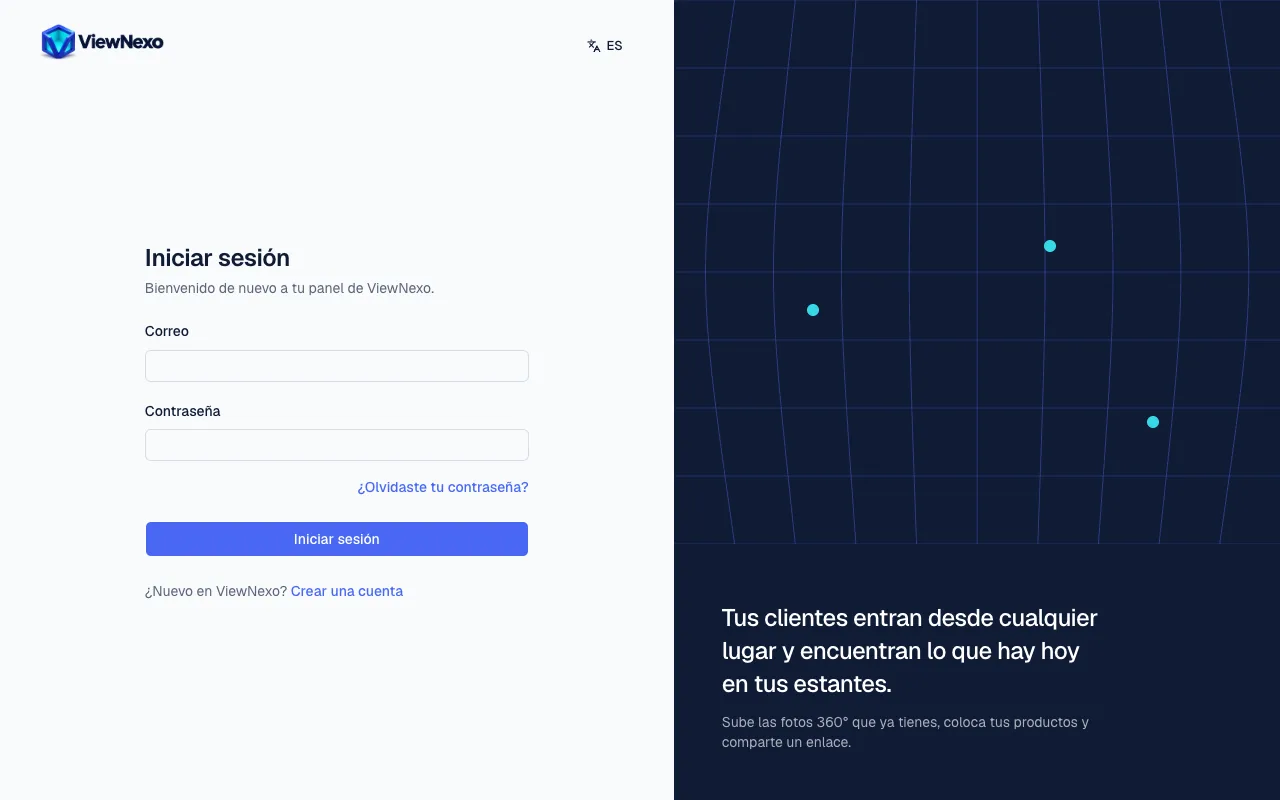
On a phone or tablet
- Open the browser: Chrome on Android (the coloured circle) or Safari on iPhone and iPad (the blue compass).
- Tap the address bar. In Chrome it is at the top; in Safari on iPhone it is usually at the bottom. The keyboard appears.
- Type app.viewnexo.com, without spaces.
- Tap Go on the keyboard (it may say Open or show an arrow). The Sign in screen opens.
If the phone suggests another word while you type, check that it reads exactly app.viewnexo.com before tapping Go.
From the viewnexo.com site
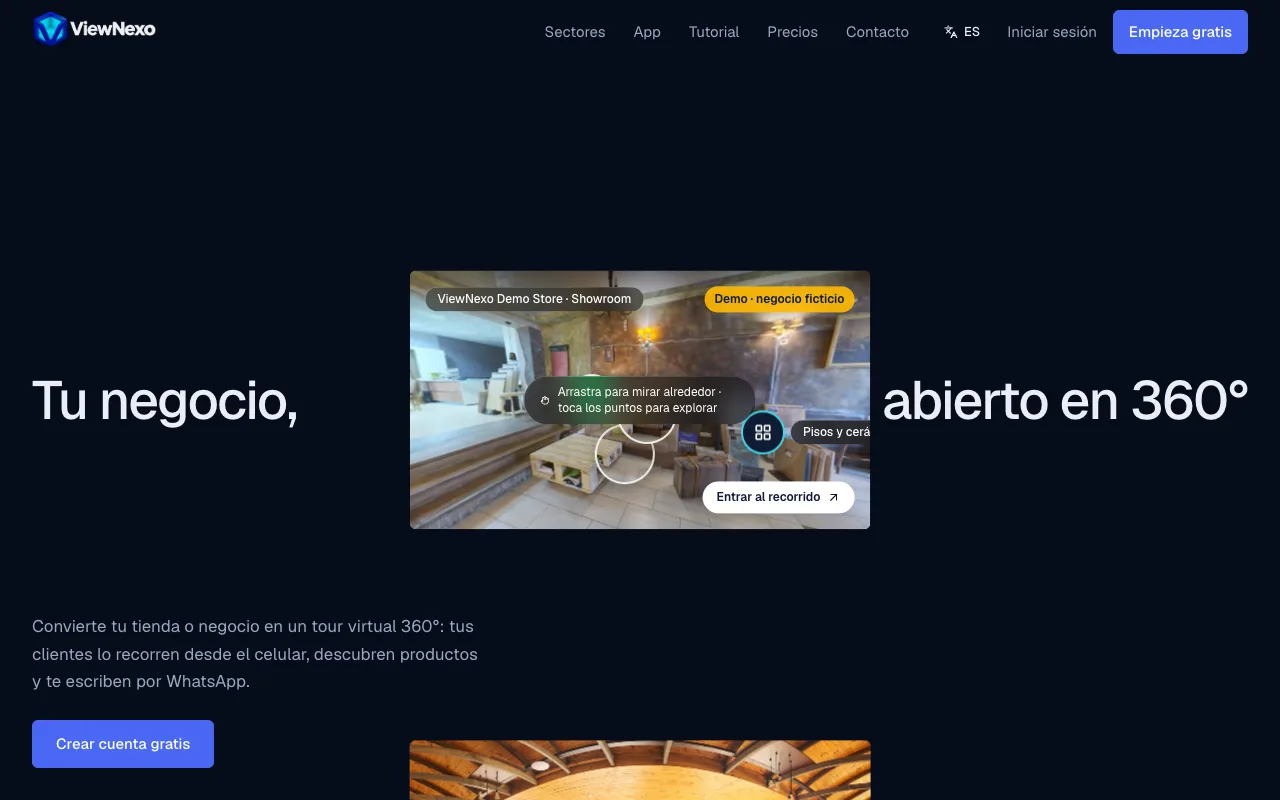
- Type viewnexo.com in the address bar and press Enter or Go.
- At the top right you will see Sign in (to get in if you already have an account) and the blue Start free button (to create a new account).
- Press the one you need and the dashboard opens at app.viewnexo.com.
On very narrow phone screens only the Start free button is visible. If you already have an account, type app.viewnexo.com directly.
Save it for next time
So you do not have to type the address every time.
- Windows computer: with the dashboard open, press the Ctrl and D keys together, then Done. It is saved as a bookmark; find it under the star or in the bookmarks bar.
- Mac: press ⌘ (Command) and D together, then Add.
- iPhone or iPad with Safari: tap the Share button (a square with an arrow pointing up), scroll down, tap Add to Home Screen and then Add. A ViewNexo icon appears next to your apps.
- Android with Chrome: tap the ⋮ menu (three dots at the top right) and then Add to Home screen (some phones say Install app).
- You also receive a welcome email with the link to the dashboard: you can open it from there.
If it does not open
- Check your internet: open another page you know, such as google.com. If that does not open either, the problem is the connection, not ViewNexo.
- Check what you typed: it must be app.viewnexo.com, with a dot between each part and no spaces. A common mistake is typing it into the Google search box instead of the address bar; if you see a list of results, tap the one that says app.viewnexo.com.
- Reload the page: press the circular arrow next to the address bar, or the F5 key on Windows (⌘ and R on a Mac).
- Try another browser (Chrome, Edge or Safari).
- Update your browser: very old browsers may not show the dashboard. On a phone, update it from the Play Store or the App Store.
- If nothing works, message us on WhatsApp at +593 97 926 8620 and tell us what you see on the screen (a photo of the screen helps a lot).