
7. Businesses: details, branding, WhatsApp and locations
A business is each brand or shop in your organization. Each has its own catalog, tours and public page at viewnexo.com/b/your-business. The first one is created during the initial setup.
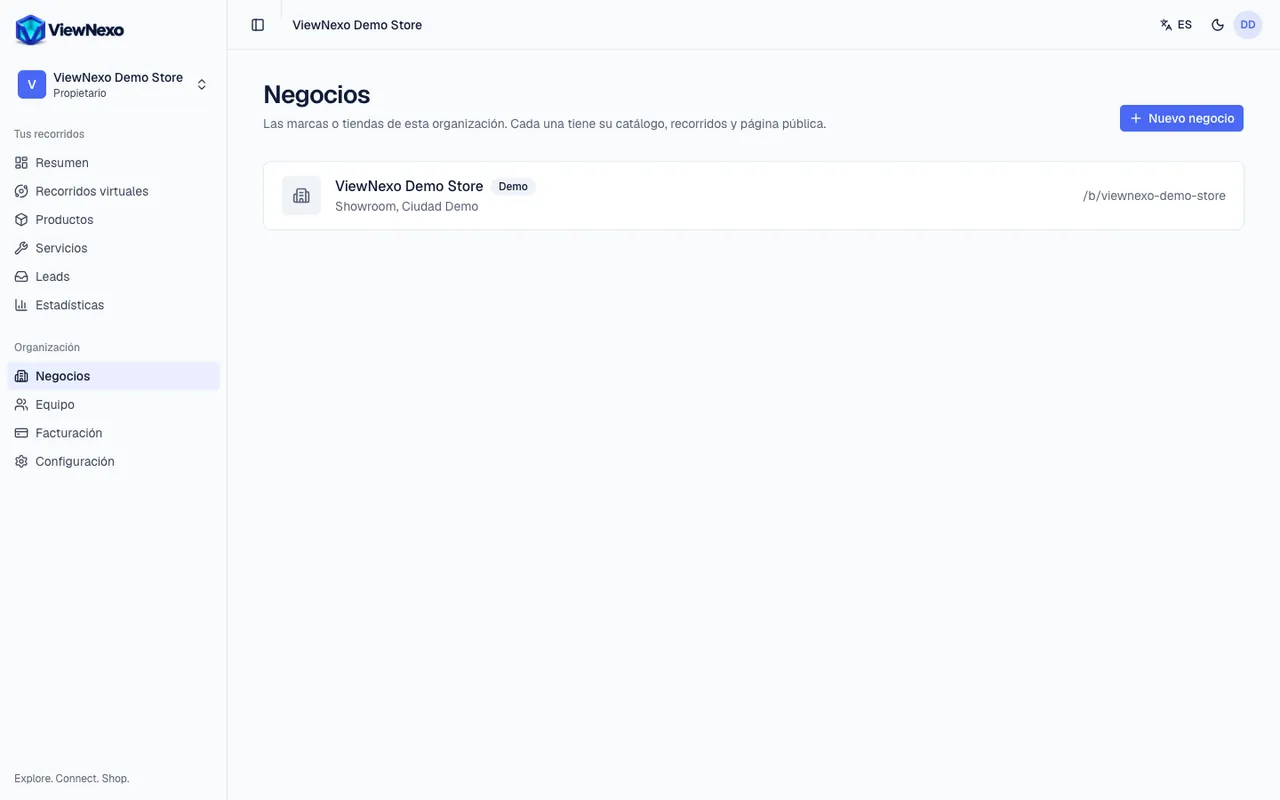
- Press Businesses in the sidebar, Organization group. You see the list with each business's name and public address (/b/name).
- Press a business to open its page. At the top are the tabs Details, Branding, WhatsApp, Locations, Sales and Assistant; press one to switch tab.
- To create another business press New business, at the top right, fill in the form and press Create business. How many you can have depends on your plan.
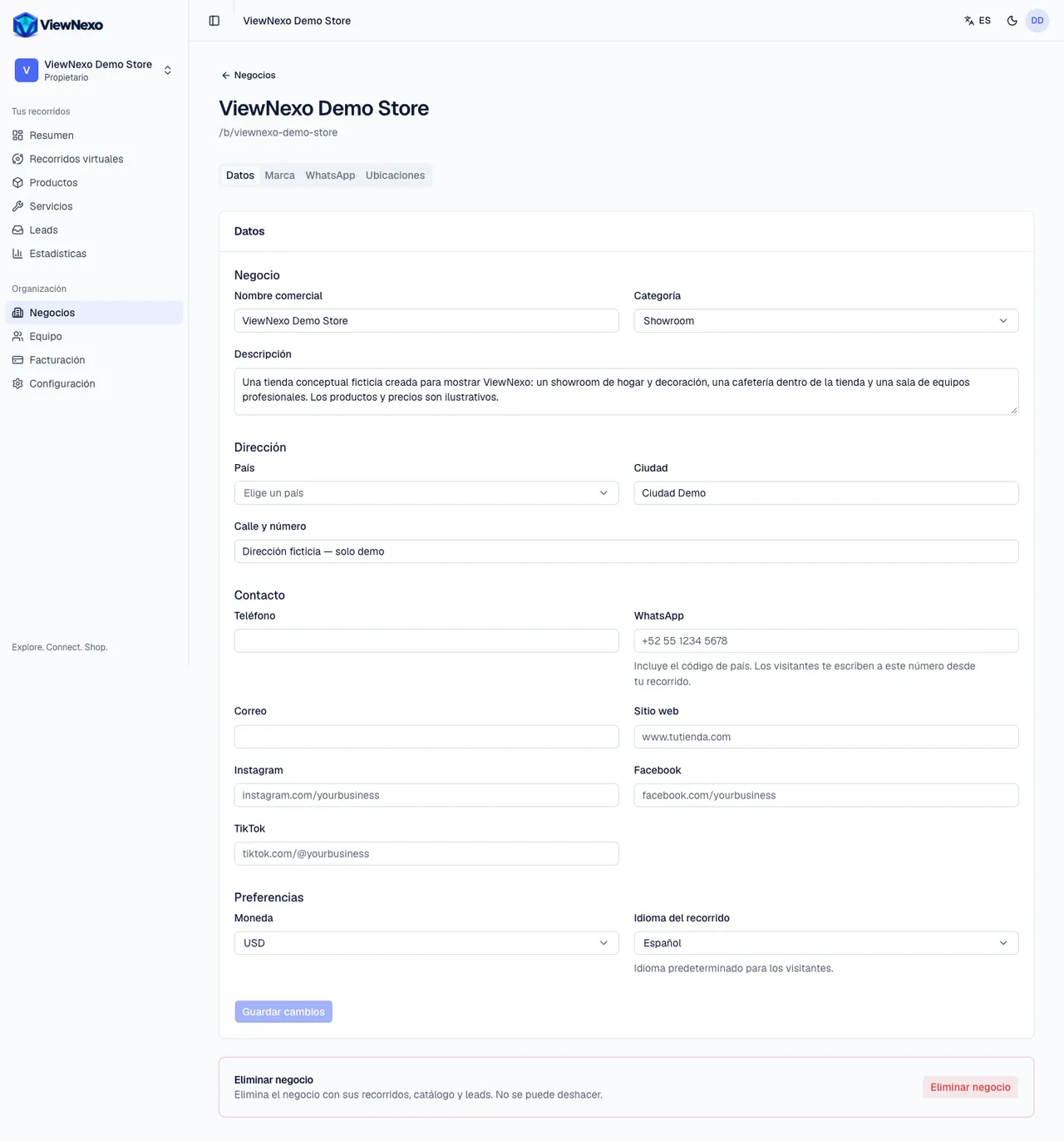
Details tab
- Business: Business name, Category and Description. If your plan includes the AI assistant, Write with AI sits next to Description (chapter 17).
- Address: Country, City and Street address.
- Contact: Phone, WhatsApp, Email, Website, Instagram, Facebook and TikTok. For Instagram, Facebook and TikTok paste your profile address, for example instagram.com/yourbusiness.
- Preferences: Currency and Tour language (the default language for visitors).
- Press Save changes at the end. You will see the Changes saved notice.
- Further down is Delete business: it removes the business with its tours, catalog and leads. It asks you to confirm and cannot be undone.
How to write the WhatsApp number
Write the full number with the country code, without the + sign, without spaces and without the leading 0 of the local number. It must have 8 to 15 digits.
- Ecuador (593): the mobile 097 926 8620 is written 593979268620.
- Colombia (57): 300 123 4567 is written 573001234567.
- Peru (51): 912 345 678 is written 51912345678.
- Mexico (52): 55 1234 5678 is written 525512345678.
Without a WhatsApp number in Details, visitors cannot message you. After saving it, test it with the Try it on WhatsApp button on the WhatsApp tab.
Branding tab
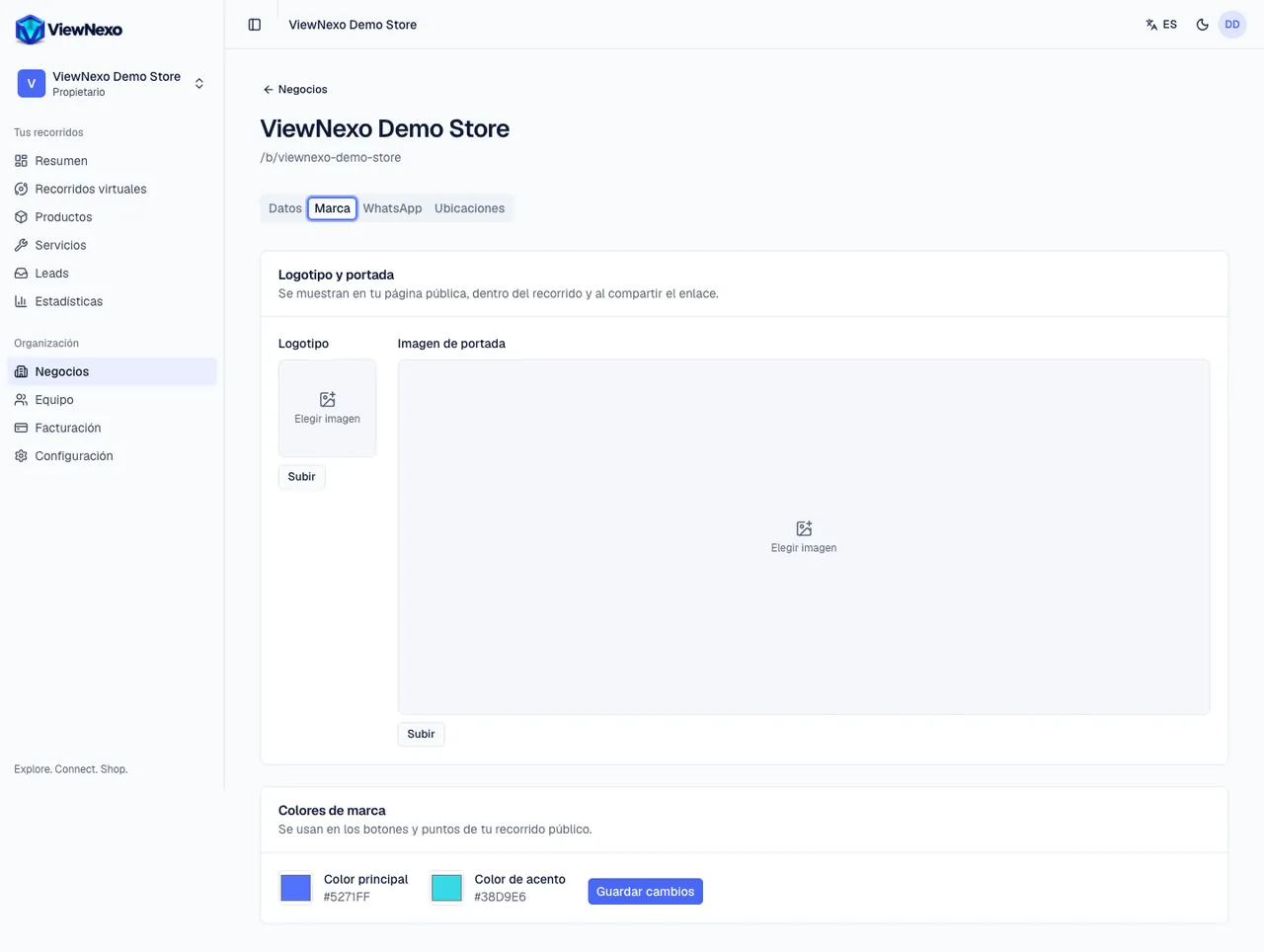
- Logo and cover image: shown on your public page, inside the tour and when the link is shared.
- To upload the logo, press Upload below the Logo box, find the file on your computer (for example in Downloads or Desktop) or in your phone's photos, select it and press Open. It saves by itself. JPG, PNG, WebP and HEIC work; a square logo looks best.
- To change it press Replace; to take it off, Remove. The cover works the same way and is best as a landscape photo.
- Brand colors: Main color and Accent color tint the buttons and points of the tour. Press the color square, pick one and press Save changes. Custom colors are included in higher plans; if yours does not have them, you will see See plans.
WhatsApp tab
- Message: the text visitors send when they tap WhatsApp in your tour. It opens in their WhatsApp, ready to send, with the name of the product they were looking at.
- [PRODUCT_NAME], [BUSINESS_NAME] and [TOUR_NAME] are replaced automatically by the product, the business and the tour. For example: Hi, I saw [PRODUCT_NAME] in your virtual tour and would like more information.
- The Preview shows how the message reads. Press Save changes.
- Try it on WhatsApp opens WhatsApp with the sample message to your number, so you can check it works.
- If there is no number in Details, you will see a notice here asking you to add it.
Locations tab
- The physical places where your tours were photographed. Add one per branch with Add location.
- The one marked Main is shown first on your business page.
- The three-dot button (…) next to each location has Edit and Delete.
Sales, Assistant and your public page
Sales turns on the cart and WhatsApp orders (chapter 16). Assistant sets up the AI sales assistant that helps visitors inside the tour (chapter 17). Both are included in paid plans.
Each business has a page at viewnexo.com/b/ followed by the name shown in the list (for example viewnexo.com/b/nova-electronics). It shows your logo, cover, contact details and published tours. Open it in the browser to see it the way your customers do.