
10. The 360° editor
In the editor you connect scenes and place points. It opens with Open editor on the tour's page and fills the whole screen. Everything saves automatically: at the top you will see Saving… and then All changes saved.
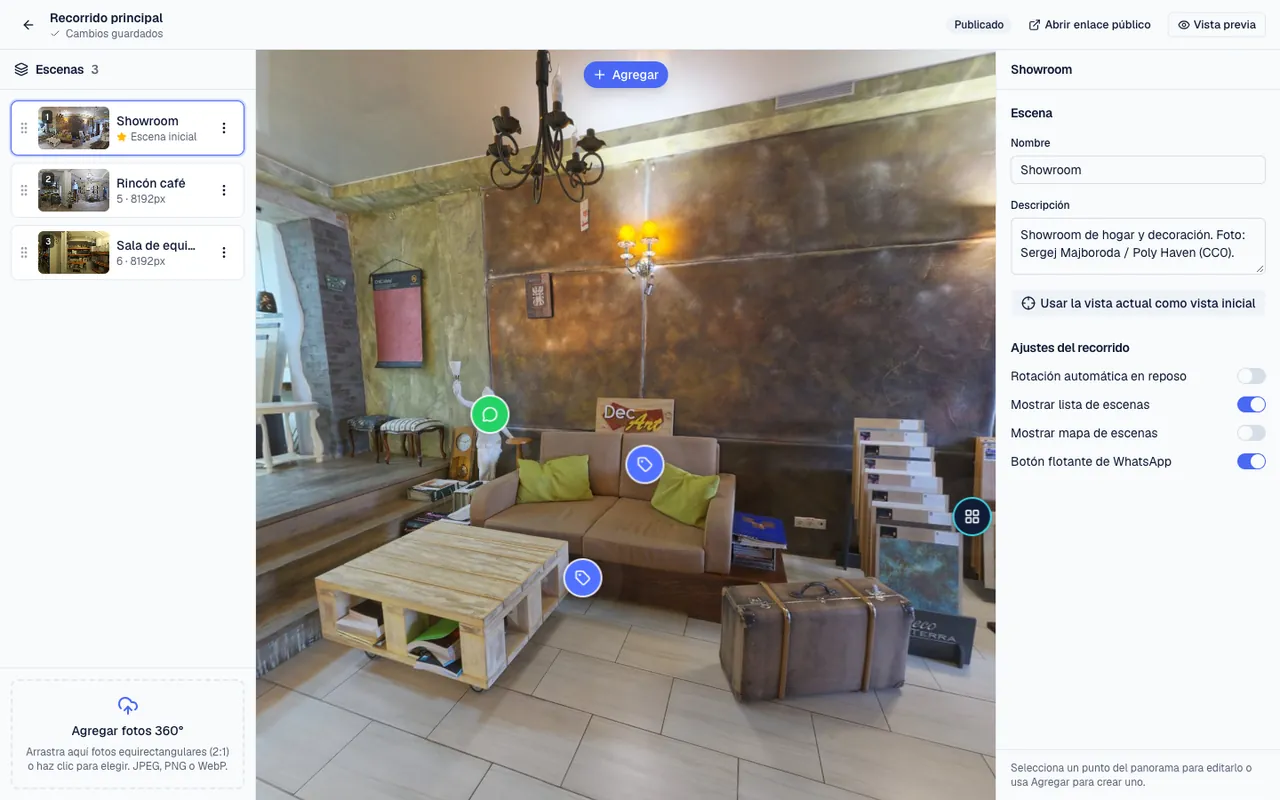
Looking around
- With the mouse: click on the panorama, hold the button down and move the mouse to turn the view. With a finger: slide over the photo.
- Zoom in and out: turn the mouse wheel, or pinch and spread two fingers on the screen.
- To change scene, press its name in the scene list.
The three areas
- Left, Scenes: every photo of the tour and how many there are. Drag them by the dotted handle to reorder them. The star marks the starting scene. At the bottom, Add 360° photos uploads more (drag the photos in or click to choose).
- Middle, the panorama: the 360° photo of the open scene, with its points. At the top centre is the Add button for creating points (chapter 11).
- Right, the editing panel: with no point selected it shows the Scene panel, the Tour settings and the Suggested points (chapter 12); press a point and it shows its details.
Each scene's actions
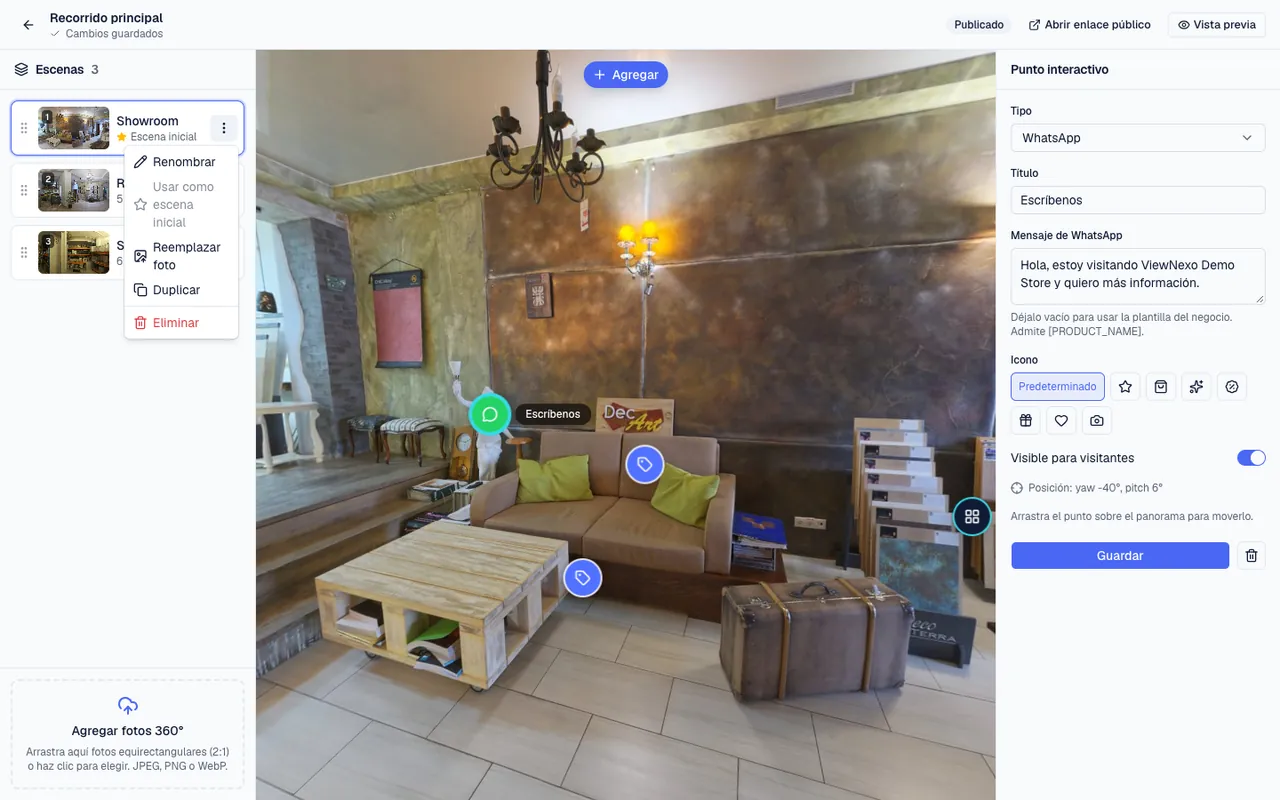
- Press the three dots (⋮) next to a scene: Rename, Set as starting scene, Replace photo, Duplicate and Delete.
- Delete asks you to confirm: it removes the scene with its points and the arrows that led to it, and cannot be undone.
- If a photo failed to process, the menu has Retry.
Scene panel and Tour settings
- Scene: Name and Description. Turn the panorama to the view you want visitors to start from and press Use current view as starting view. You can also set the Position on scene map.
- Tour settings: Auto-rotate when idle, Show scene list to visitors, Show scene map and Floating WhatsApp button.
The top bar
- The ← arrow on the left goes back to the tour's page. Next to it you see the name, the save status and whether it is published.
- Preview: shows the tour exactly as visitors will see it (leads and analytics are disabled). Back to editing returns to the editor.
- Open public link (if it is already published) and Publish (if it is not yet and you are a manager or owner).
On a phone or tablet
On small screens the side lists are hidden. At the bottom left, the Scenes button opens the scene list; at the bottom right, the other button opens the editing panel. The editor works, but it is more comfortable on a computer.