
14. Services
Services are for what isn't a product on a shelf: appointments, consultations, classes, installations, rooms, test drives or visits. Visitors see them inside the tour and can request a booking or more information.
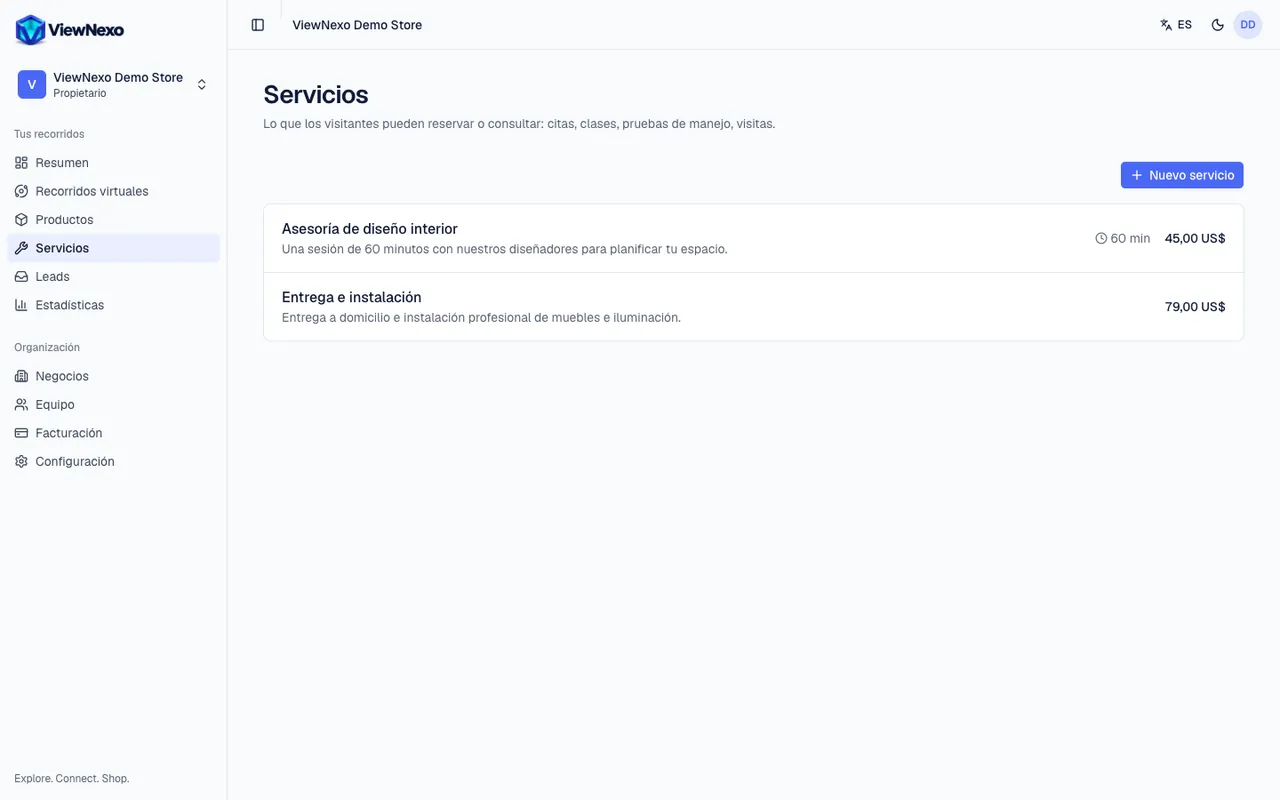
- In the left sidebar, click Services.
- Click the blue New service button, top right.
- Name: for example 60-minute facial.
- Description: what it includes, who it is for, what the customer should bring. The Write with AI button can suggest the text.
- Price and Currency: optional. If the price depends on each case, leave it empty.
- Duration in minutes: for example 60. It is shown as 60 min.
- Booking link: optional. If you already use an appointment system (such as Calendly or your own software), paste its address here and visitors go there. If you leave it empty, visitors send you a booking request that arrives in Leads (chapter 15).
- Image: a photo that represents the service.
- Visible to visitors: turn it off to hide it without deleting it; it will show as Hidden in the list.
- Click Create. To change it later, tap the service in the list and click Save changes; to delete it, open it and click Delete.
- Finally, in the 360° editor add a Service point in the scene where it is offered (chapter 11). There you choose whether the button says Request a booking or Request information.
- Beauty salon or spa: Haircut, Manicure, 60-minute facial, each with its duration and price.
- Restaurant: Table booking, Private event, Group menu.
- Hotel: Double room, Suite, Pool day pass.
- Car dealership: Test drive, Service appointment, Trade-in appraisal.
- Gym: Free trial class, Monthly plan, Personal training.
- Real estate: Apartment viewing, Mortgage advice.