
4. Signing in and out
Signing in means entering the dashboard with your email and password. You do it every time you use a new device or after signing out.
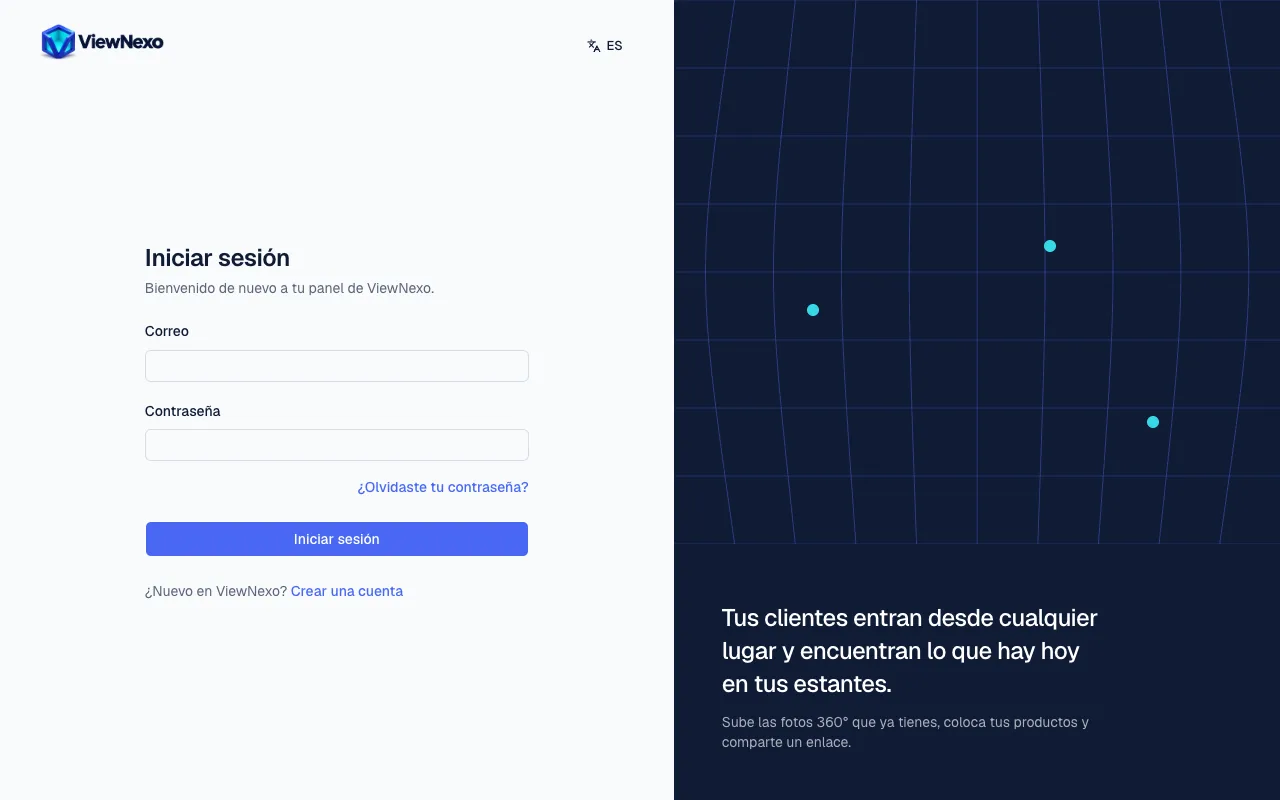
- Open https://app.viewnexo.com (chapter 2). If you are not signed in, the Sign in screen appears.
- Click the Email field and type the email you created the account with.
- Click the Password field and type it. Watch the capital letters: the password treats A and a as different.
- Press the blue Sign in button. You land on the Overview.
If you see That email and password don't match, check the email is spelled correctly and type the password again calmly. If you do not remember it, use Forgot your password? (see below). If you do not have an account yet, press Create an account, below the button.
Signing out
- At the top right of the dashboard there is a circle with your initials: your account menu. Press it.
- A list opens with your name and email, Account settings and Report a problem.
- Press Sign out, at the end of the list. You are back on the Sign in screen.
Always sign out when you use a borrowed or shared computer.
If you forgot your password
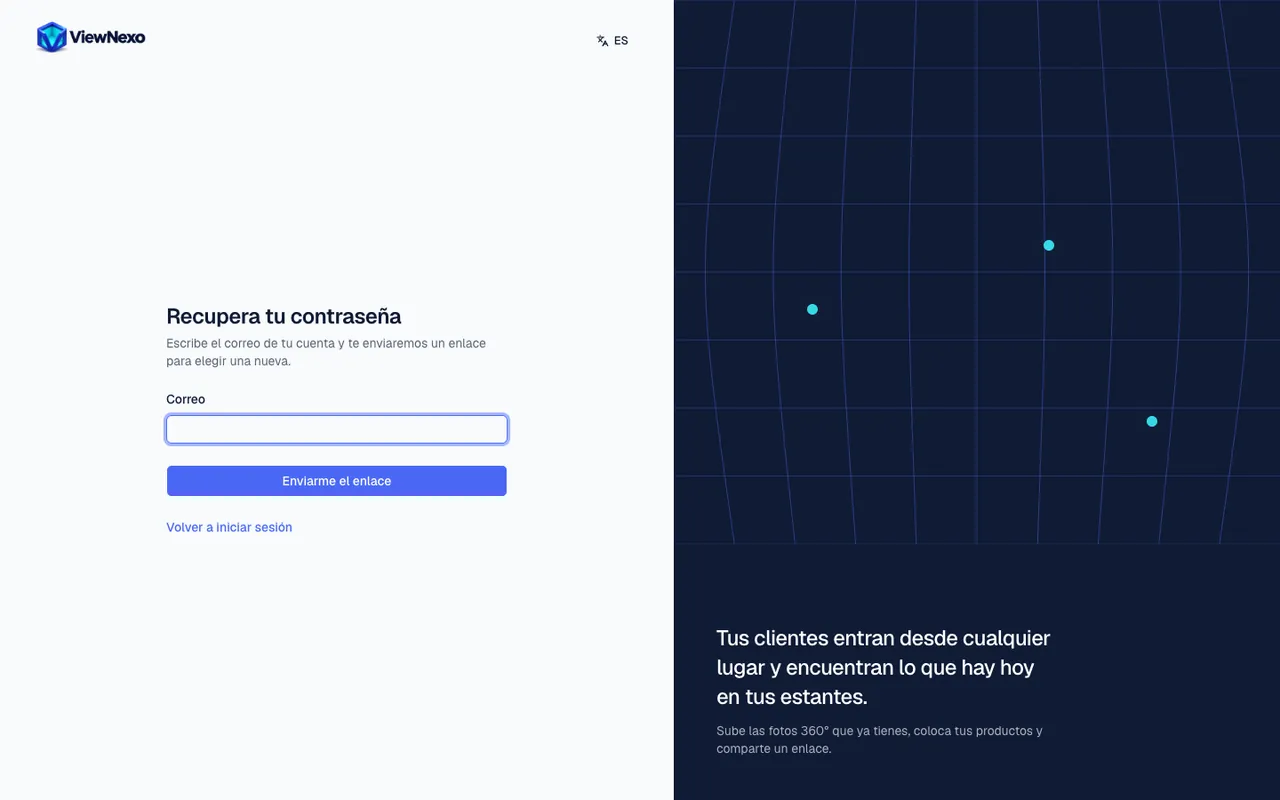
- On the Sign in screen, press Forgot your password?, next to the Password field.
- Recover your password opens. Enter your account's email and press Send me the link.
- Check your email appears. Open your email and look for the ViewNexo message (check Spam and Promotions if you do not see it).
- Press the link in the email. It is valid for 30 minutes and can only be used once.
- On Choose a new password, type the new one in New password and again in Repeat the password (at least 8 characters, with letters and numbers).
- Press Save password. You will see Your password was changed. Sign in with the new one.
- Saving it signs out the sessions open on other devices; you will need to sign in again there with the new password.
- If the link says This link no longer works, it expired or was already used: press Request a new link and use it within 30 minutes.
- If you mistyped the email, press Use another email. To go back without changing anything, press Back to sign in.
If it asks for a code when you sign in
If you turned on two-step verification (chapter 21), Confirm it's you appears after the password. It is an extra layer of protection.
- Open your email and look for the 6-digit code ViewNexo just sent you.
- Type it in the Sign-in code field and press Sign in.
- If it does not arrive, check Spam and Promotions; after a minute you can press Resend code. Back takes you to the sign-in screen again.
Changing the language: Spanish or English
- At the top right of the dashboard there is a button with a languages icon and the letters EN (or ES).
- Press it and choose English or Español.
- The whole dashboard switches at once. The choice is saved to your profile, so next time you will sign in in the same language.
The dashboard language is just for you. The language customers see in the tour is set in the business details (chapter 7).