
17. AI assistant: in the tour and in the dashboard
ViewNexo has two AI assistants: a virtual salesperson that serves your visitors inside the tour, at any hour, and a copilot that helps you inside the dashboard. Both are included in paid plans, with a monthly number of messages per plan. You don't have to choose or set up any model: you just turn them on.
Turn on your tour's assistant
- In the left sidebar, click Businesses and open your business.
- Click the Assistant tab. If your plan doesn't include it, you will see the notice and the See plans button.
- Turn on Enable the assistant. This shows the chat button in your tour and on your public page.
- Assistant name: how it introduces itself, for example Nexo, Sofia or Central Café Assistant.
- Tone: Friendly (like a friend serving you), Formal (polite, distant) or Sales (more of a salesperson, suggests products).
- Extra information: what it should know that isn't in your catalog (next section).
- Hand off to WhatsApp: keep it on so that when it doesn't know something or the visitor asks for a person, it offers your WhatsApp. It needs your number in the Details tab.
- Look at the Preview: it shows the greeting ("Hi, I'm Nexo from your business. How can I help?") and the three questions it suggests when opened.
- Click Save changes. Only owners and managers can change this tab.
- Open your tour on your phone and ask it two or three questions yourself, the way a customer would.
What to write in Extra information
The assistant already knows your products, prices, stock, services and your business details. In Extra information (up to 8000 characters) write everything else people ask you on WhatsApp. Short sentences, one fact per line.
- Hours: "Monday to Friday 9:00 to 18:00. Saturdays 9:00 to 13:00. Closed on Sundays. Holidays 10:00 to 14:00."
- Payment methods: "We accept cash, bank transfer and card on pickup or delivery. There is no online payment."
- Exchanges and warranty: "Exchanges within 15 days with the receipt and the tag on. 6-month warranty on appliances."
- Delivery: "We only deliver within the city, in 24 to 48 hours. Orders over 50 USD ship free."
- How to get here: "Free parking for customers. We are across from the central park, next to the pharmacy."
- Restaurant: "We have vegetarian and gluten-free options. Bookings for groups of more than 8 people one day in advance."
- Hotel: "Check-in from 15:00 and check-out until 12:00. Breakfast is included. Small pets welcome for a fee."
- Repair shop or services: "The diagnosis costs 20 USD and is deducted if we do the repair."
Don't write anything you wouldn't want a customer to read: the assistant uses this text to answer. Check the Unanswered questions in Analytics every week and add what is missing here.
What the visitor sees and does
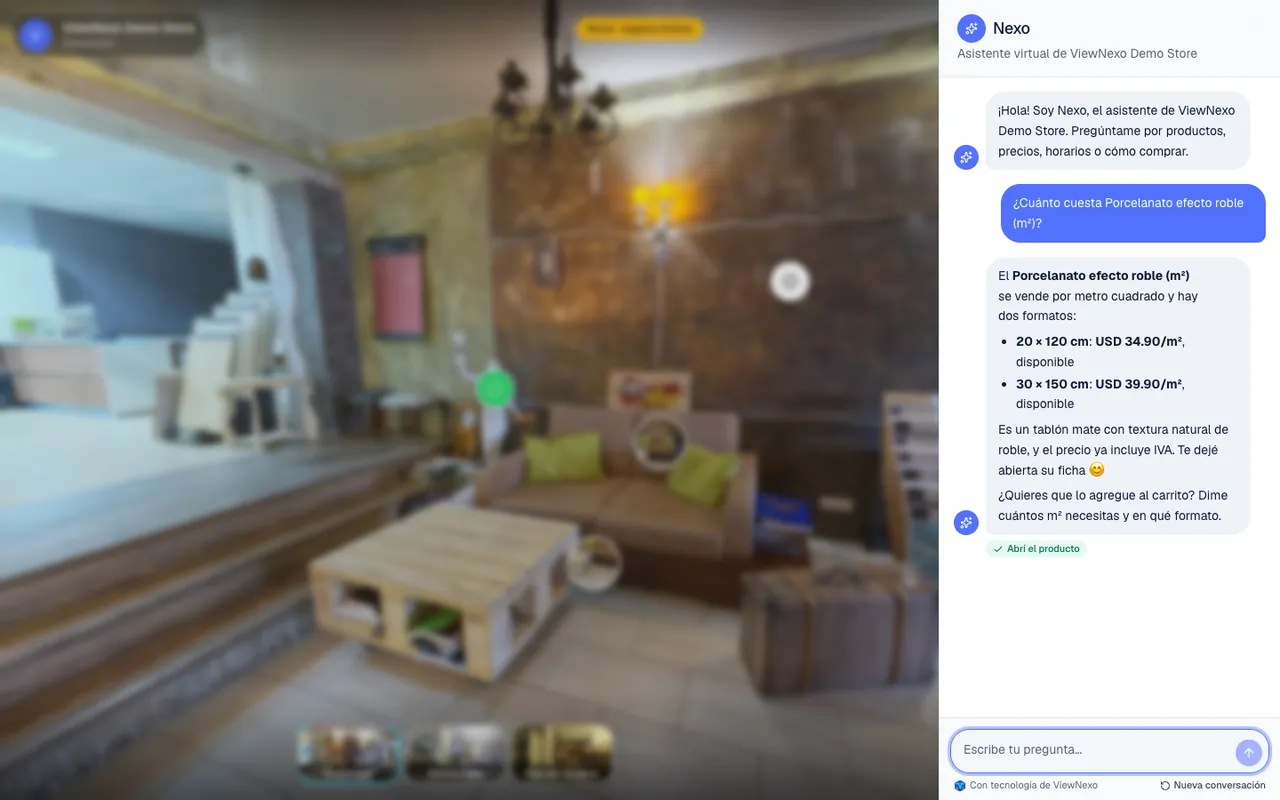
- The visitor taps the chat button (it says Chat with and your assistant's name), next to the cart and WhatsApp. They see a greeting and three suggested questions, and write whatever they want in their language.
- The assistant answers only with your business's information: real products, prices and stock, services, hours and what you wrote in Extra information. It never makes up prices.
- Besides answering, it acts: it takes the visitor to the right scene, opens the product sheet, adds to the cart (when sales are on), creates an information, quote or booking request (asking for name and phone) or opens WhatsApp with you with the context of the conversation. Under the message it shows what it did, for example Opened the product.
- New conversation, at the bottom, starts over. The assistant can remember what the visitor told it (for example their name or size) for their next visit; with Forget me the visitor erases that whenever they want.
- Under Analytics, Assistant section, you see the Conversations, Messages, Handed off to WhatsApp, Leads created, Most frequent questions, Unanswered questions and Most asked-about products.
The dashboard copilot
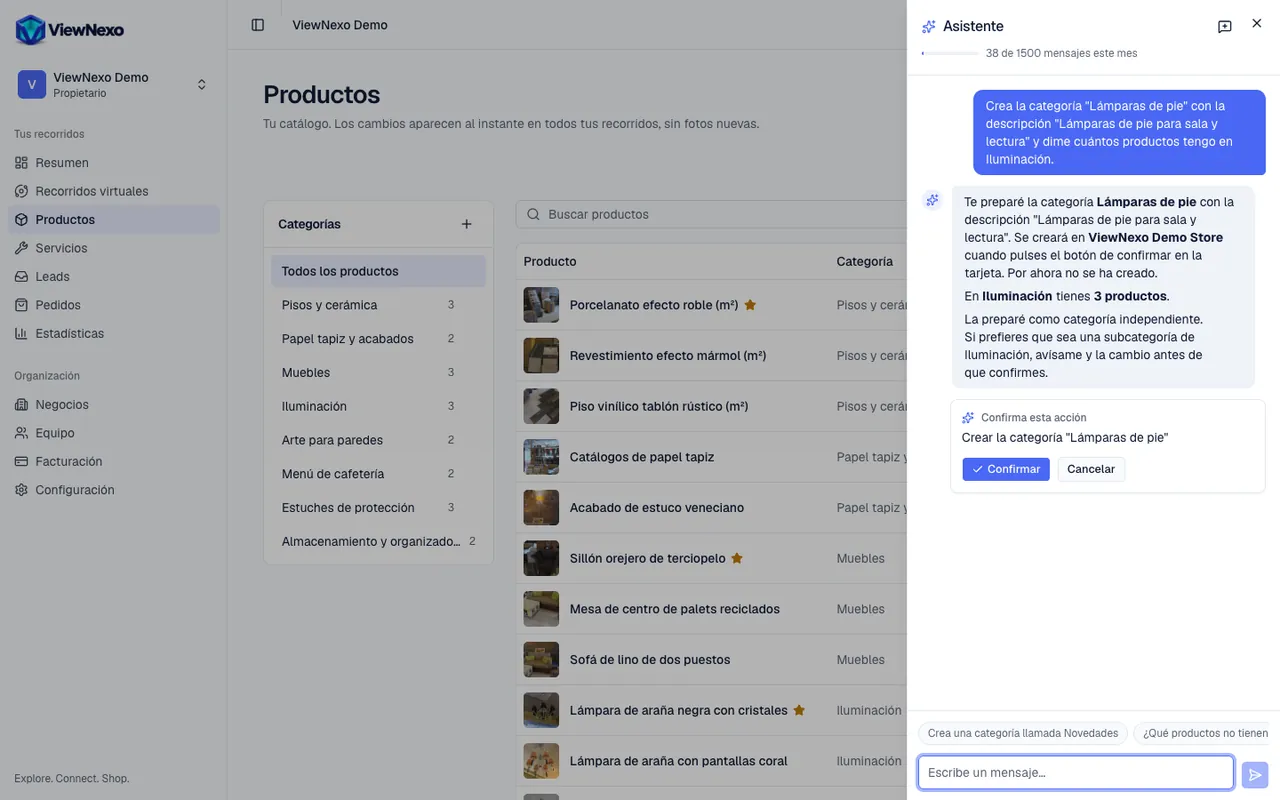
- At the top right of the dashboard, next to the bell, click the sparkles button (✨). The Assistant panel opens on the right and stays with you as you change screens.
- At the top you see how many messages you have used this month. At the bottom there are suggested questions that change with the screen you are on.
- Type in Type a message… and click Send (the arrow) or press Enter.
- Ask about your data: "How much did I sell this month?", "How many new leads haven't been contacted?", "Which scenes of my tour have no hotspots?".
- Ask it to do things: create or change products, categories and services, change business details, place a point in a scene, adjust sales or change an order's status.
- It also knows how the dashboard works (it knows this tutorial): "How do I invite a teammate?".
- Every action that changes data first appears as a Confirm this action card with the summary. Click Confirm to do it or Cancel. Nothing runs without your approval and it can only do what your role allows.
- To start another topic, click New conversation (the icon at the top). If something fails, at the bottom there is Something not working? Report a problem.
Write with AI
- Look for the Write with AI button next to the field title. It is in the product and service descriptions, the business description, the WhatsApp message and the tour's title and description for search engines and social media.
- First fill in the basics (for example the product's name and category): the text is generated from what you already wrote.
- Click Write with AI. Pick the Tone: Friendly, Formal or Sales.
- In Notes (optional) say what to highlight or avoid, for example "handmade, great as a gift".
- Click Generate. The text appears in the field: read it and fix anything that isn't accurate.
- Click the form's Save changes to keep it.
Limits and privacy
- Every plan includes a monthly number of messages; you see it under Billing and at the top of the copilot. When they run out, the tour assistant invites visitors to write to you on WhatsApp.
- Conversations are processed by Claude, from Anthropic, only to answer; they are not used to train models and are stored in ViewNexo for your analytics.
- The assistant doesn't store sensitive visitor data (health, payments, ID documents).
Write in Extra information the answers to the five questions you get most on WhatsApp: the assistant will answer them instantly, at any hour.