
3. Create your account
Go to https://app.viewnexo.com/register, or press Start free on viewnexo.com, or Create an account on the Sign in screen. Every new account starts on the Free plan for 3 months, with no card required.
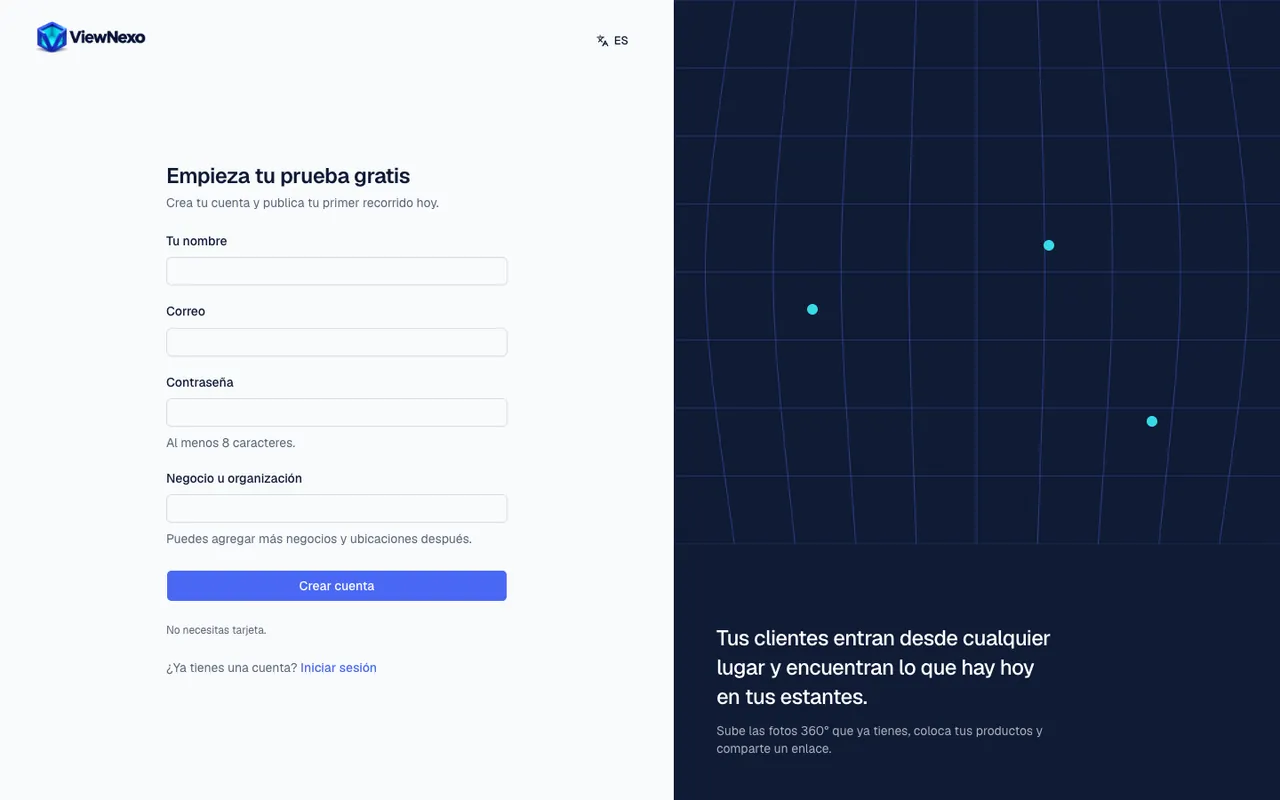
Step 1: fill in the form
The screen is called Start your free trial. It has four fields; click or tap inside each one to type.
- Your name: your first and last name, as you want us to greet you. For example, Maria Perez.
- Email: an address you can open right now, because a code will arrive there. Type it in full, with the at sign (@), for example maria@gmail.com. Check that it has no spaces or extra letters.
- Password: make up a password of at least 8 characters that mixes letters and numbers, for example a word you remember plus three numbers. While you type you see dots instead of letters; that is normal.
- Business or organization: the name of your company, for example Hammer Hardware. You can add more businesses and locations later.
- Press the blue Create account button. While it works it says Creating your account…; wait a few seconds.
If a field turns red, read the message below it, for example Enter a valid email address or Use at least 8 characters. Fix it and press Create account again.
Step 2: confirm your email with the code
The Check your email screen appears. We sent you a 6-digit code to check the email is yours. Do not close this screen.
- Open your email in another browser tab (on a computer) or in the mail app on your phone. That way you keep the code screen.
- Look for an email from ViewNexo sent from no-reply@viewnexo.com. It usually takes less than a minute.
- If you cannot find it, check the Spam (Junk) and Promotions folders. If it is there, mark it as Not spam so future emails arrive properly.
- Open the email and look at the code: 6 numbers.
- Go back to the ViewNexo screen, click the Verification code field and type the 6 numbers (you can also copy and paste them).
- Press Confirm and create account.
- The code is valid for 15 minutes. If more time passes, request another.
- You have up to 5 attempts: if you get it wrong, the screen tells you how many are left. When they run out, request a new code.
- Resend code: below the button. At first it reads Resend in 60 s and counts down; when it reaches zero, press it and a new code arrives. Always use the latest one you received.
- Use another email: if you realise you mistyped the address, press it to go back to the form and fix it.
- If that email already had a ViewNexo account, you receive a notice instead of a code. In that case, sign in with that account (chapter 4).
Step 3: you are in
Once the code is confirmed you go straight into the dashboard, on the Overview screen. You also receive a welcome email with links to your dashboard, this tutorial and the app. Keep it: it helps you come back.
The first thing you will see is the Get your first tour online card with the Start setup button. Continue with chapter 6, which explains that setup step by step.
If a teammate invited you
When an account owner invites you, you receive an email with a link. You do not need to sign up separately.
- Open the email with the subject You're invited to (organization name) on ViewNexo and press the Accept the invitation button. If you can't see it, check your spam folder or ask for the link on WhatsApp.
- The page Join (organization name) on ViewNexo opens, showing which email the invitation is for and with which role.
- If you do not have an account yet, enter Your name and a Password (at least 8 characters, with letters and numbers) and press Create access and continue.
- If you already have an account with that email, press Sign in, sign in and then press Accept invitation.
- If the page says This invitation can't be used, it may have expired or been revoked: ask the person who invited you to send a new one.
Your password
- Use at least 8 characters with letters and numbers. Longer is safer: a short phrase with numbers, such as Shop2024Downtown, is easy to remember and hard to guess.
- Do not use your date of birth, 12345678 or just the business name.
- Write it down somewhere safe or let the browser save it when it offers (press Save).
- Do not share it. If someone else needs access, invite them with their own email (chapter 19).
- You can change it any time in Settings (chapter 21).