
21. Settings
Settings holds your profile, your account's security and the organization's preferences. You get there from the left sidebar (Settings) or from your account menu, the circle with your initials at the top right (Account settings).
- Your profile: Name and Dashboard language. Change what you want and click Save changes.
- Organization: Organization name and Default language for new tours. Only the owner can change them.
- Notifications: three switches for the emails you want: New leads, Tips and reminders, and System notices (tour published, scene ready, team or plan changes). They save on their own when you tap them. The bell in the dashboard keeps showing everything even if you turn the emails off.
- Sign out: click the circle with your initials, top right, and then Sign out. Always do it if you used a borrowed or shared computer.
Change your password
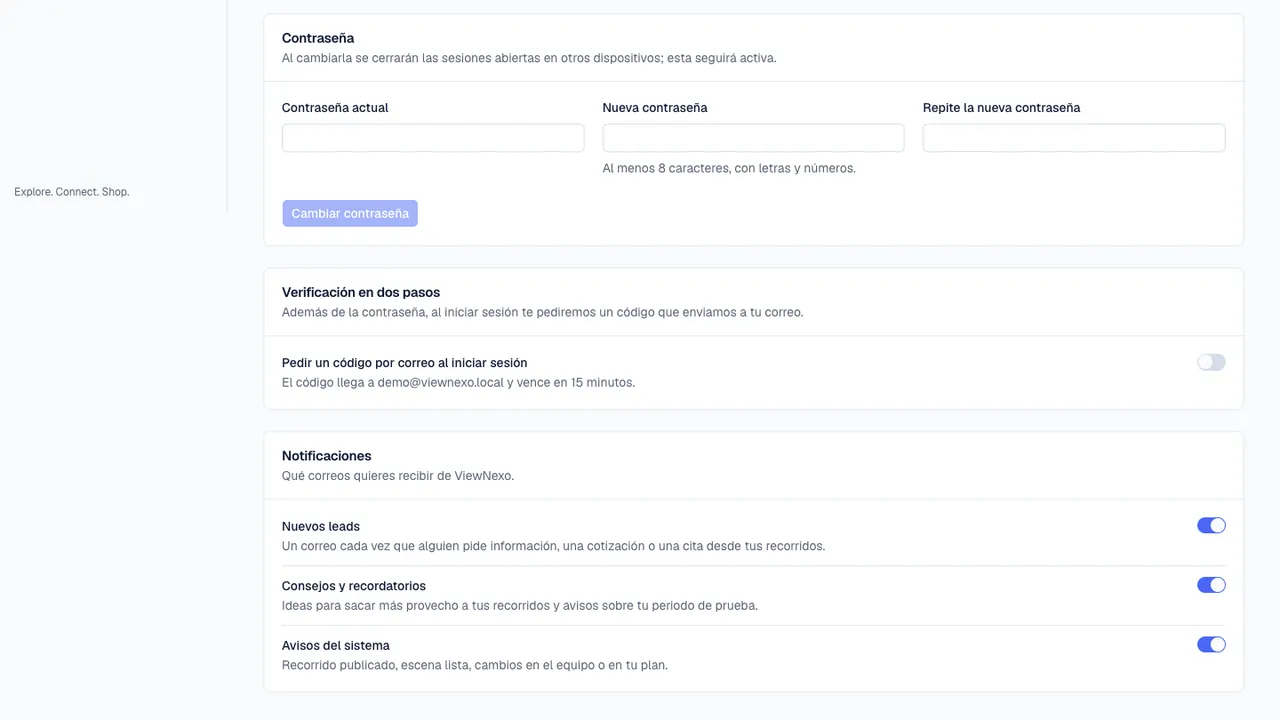
- In Settings, scroll down to Password.
- In Current password, type the one you use today.
- In New password, type the new one: at least 8 characters, with letters and numbers, and different from the current one.
- In Repeat the new password, type it again, exactly the same.
- Click Change password. You will see "Your password was changed. We emailed you a notice."
- Sessions open on other devices are signed out (you will have to sign in there again with the new password); you stay signed in on this one.
If you don't remember the current one, sign out and use Forgot your password? on the sign-in screen (chapter 4).
Turn on two-step verification
With two-step verification, besides the password we ask for a code sent to your email every time you sign in. Even if someone guesses your password, they still can't get in.
- In Settings, find Two-step verification.
- Turn on the Ask for an emailed code at sign-in switch.
- The Confirm your email window opens: we send you a 6-digit code. Open your email, find it and type it in the window.
- Click Turn on. You will see Two-step verification is on.
- From now on, when you sign in, after the password we ask for a new code that arrives by email and expires in 15 minutes.
- To turn it off, switch it off, enter your password and click Turn off.