
22. Support: report a problem or ask a question
If something fails or you have a question, open a ticket from the dashboard. The ViewNexo team answers right there and by email, and you can follow the conversation until it is solved.
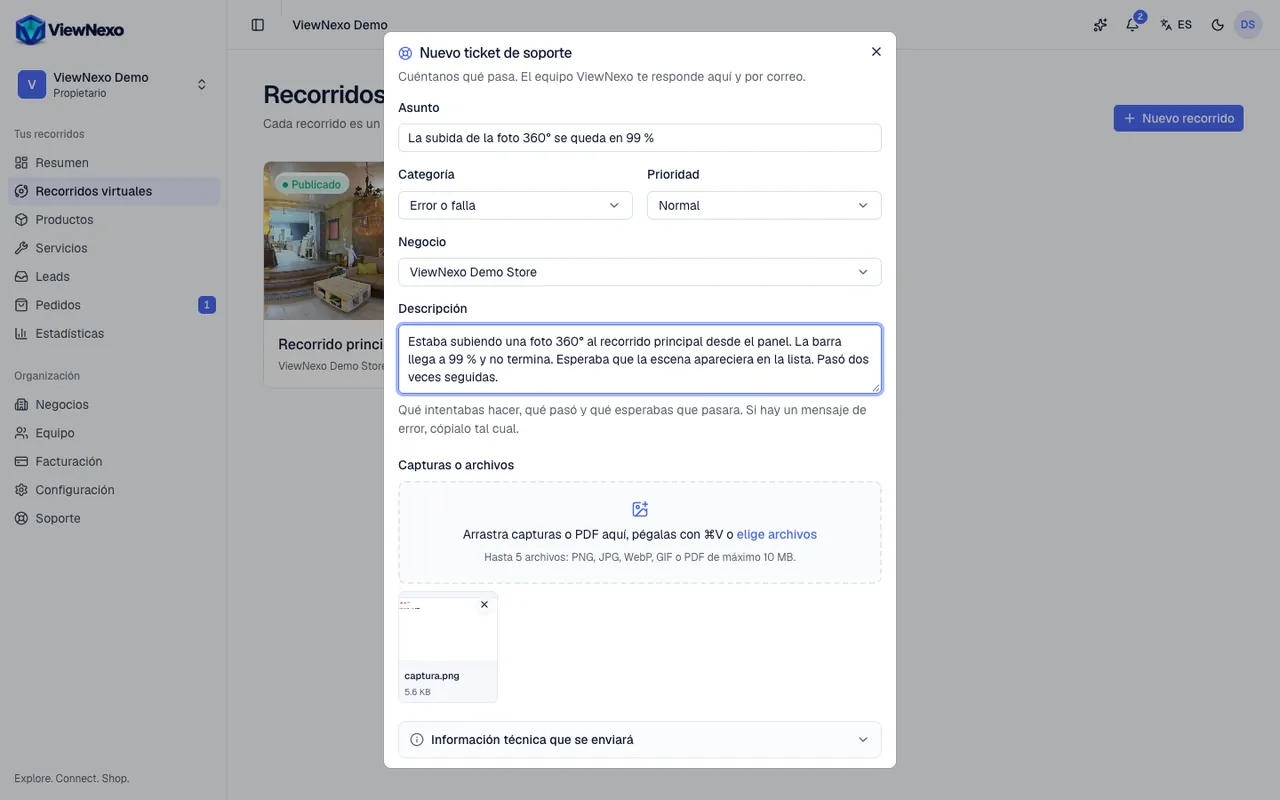
- Click Support, at the bottom of the left sidebar, and then New ticket. You can also use Report a problem in your account menu (the circle with your initials, top right) or at the foot of the copilot: that way the ticket records the page you were on.
- Subject: a short sentence, for example "I can't publish my tour".
- Category: Bug or failure, Question, Billing, Suggestion, Account and access or Other. Priority: Low, Normal, High or Urgent. Business: the one affected, or None in particular.
- Description: what you were trying to do, what happened and what you expected. If there is an error message, copy it exactly.
- Screenshots or files: drag them into the box, paste them with Ctrl+V or ⌘V, or click choose files. Up to 5 PNG, JPG, WebP, GIF or PDF files, 10 MB max each. A screenshot saves many questions.
- Before sending you can expand Technical information that will be sent: the page, browser, screen size, language and your plan. It helps us reproduce the problem; it includes no passwords or customer data.
- Click Send ticket. You will see your ticket number.
- Follow-up: under Support you see your tickets in tabs (Open, Waiting for you, Resolved and Closed). A blue dot and the sidebar counter mark new replies, which also reach the bell and your email.
- Conversation: reply inside the ticket with text and screenshots (Ctrl/⌘ + Enter sends). If you reply to a resolved ticket, it reopens for the team.
- When it is solved, click It is solved, top right, and rate the support with stars and an optional comment.
- Resolved tickets close on their own after 7 days; if the team asked you for information and you don't reply within 14 days, the ticket is marked resolved. A closed ticket no longer accepts replies: use Open a new related one and the reference is copied over.
- Every member of your organization sees the organization's tickets. You can have up to 20 open tickets at a time.
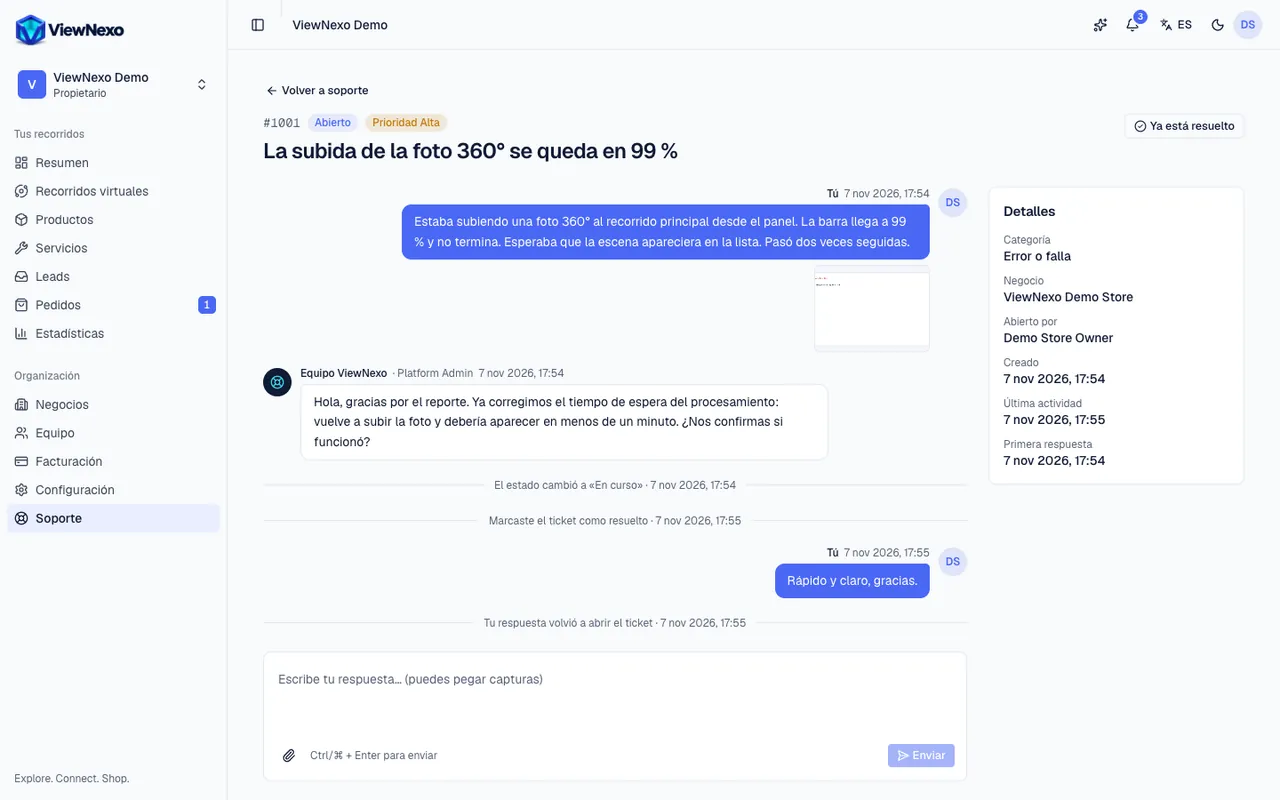
A good report has three things: the steps to make it happen, what you expected to see and a screenshot. With that we usually solve it in the first reply.
How to take a screenshot
A screenshot is a picture of what is on your screen. Here is how to take one:
- Windows: press the Windows key (the one with the logo), Shift and S at the same time. The screen dims: drag the mouse over the part you want. Then click in the ticket's description and press Ctrl+V to paste it.
- Mac: press ⌘ (Command), Shift and 4 at the same time, and drag over the part you want. The screenshot is saved on the Desktop; drag it into the ticket's screenshot box.
- iPhone: press the side button and the volume up button at the same time and let go quickly (on iPhones with a Home button: Home button and side button). It is saved in Photos.
- Android: press the power button and the volume down button at the same time. It is saved in your gallery, under Screenshots.
- On a phone, to attach it, tap choose files in the ticket and pick the screenshot from your photos or gallery.