
24. Share your tour
Your tour only brings customers if people see it. Once it is published, its page has everything to share it: the link, the code for your website and the QR code. It opens in the browser of any phone, tablet or computer, without installing anything or creating an account.
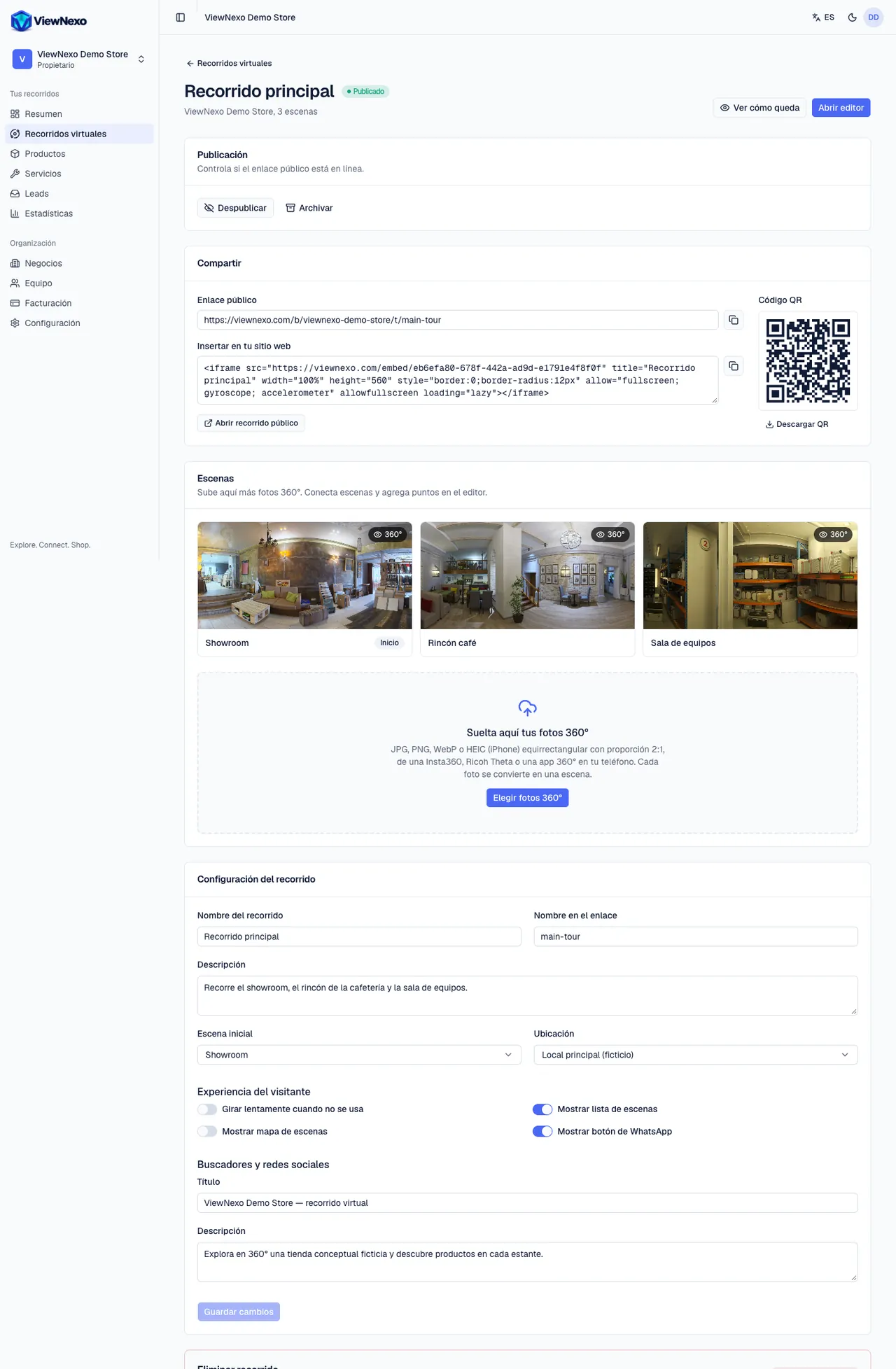
To get there: in the left sidebar click Virtual tours and tap your tour. The Share block appears below Publishing. If the tour isn't published, you will see "Publish the tour to get its public link…" (chapter 9).
Copy your link
- In Share, look at the Public link. It looks like this: viewnexo.com/b/your-business/t/your-tour.
- Click the copy button (the two little squares) to the right of the link. It turns into a check mark (✓): the link is copied.
- Go wherever you want to put it (WhatsApp, Facebook, an email) and paste it: on a computer, click in the text box and press Ctrl+V (⌘V on a Mac); on a phone, press and hold on the text box and tap Paste.
- Open public tour opens the tour exactly as your customers see it.
Share it on WhatsApp
- In a chat: open the conversation, paste the link and add a sentence, for example "Walk through our store from home 👉" and the link. When sent, it shows with the cover photo and your business name.
- In your status: in WhatsApp go to Updates (or Status), tap the pencil to create a text status, paste the link with a sentence and post it. Repeat it whenever you add new products.
- In your WhatsApp Business profile: in Settings, go to the business tools, open the business profile and paste the link in the Website field. That way it shows every time someone opens your profile.
- In broadcast lists and customer groups, send the link together with a promotion or a coupon (chapter 16).
On Instagram and Facebook
- Instagram, bio: tap Edit profile → Links → Add external link, paste the link and give it a title such as "360° tour".
- Instagram, stories: create a story, tap the stickers icon and choose Link; paste the link and write a text such as "Step inside the store".
- Instagram, posts: links can't be tapped in a post's caption; write "link in bio".
- Facebook: paste the link in a post on your page (it shows with the cover photo) and add it to your page's information, in the website field.
- Ads: use the link as the ad's destination.
Print the QR code
- In Share, on the right, is the QR code. Click Download QR.
- An .svg file named after your tour is downloaded to your Downloads folder. It is an image that stays sharp at any size.
- Open it with your browser (double-click) and print it with Ctrl+P (⌘P on a Mac), or send it to your print shop or whoever designs your materials.
- Where to put it: on the door or shop window, on the counter or at the till, on flyers and cards, on bags and packaging, on your restaurant's menu.
- Add a sentence next to it: "Scan and walk through the store in 360°".
- Before printing many, scan it with your phone's camera to check that it opens your tour.
Put it on your website
- In Share, under Embed on your website, is the code that starts with <iframe. Click the copy button to its right.
- If someone else manages your website, send them that code by email or WhatsApp and ask them to put it on the page where you want the tour.
- If you manage it yourself, look in your site editor for a block to paste code: in WordPress, the Custom HTML block; in Wix, the option to embed HTML code; in Shopify, a Custom Liquid section or the HTML view of the page editor. Paste the code there and publish.
- The tour appears inside your page, full width and 560 pixels tall, and visitors can switch it to full screen.
Embedding on your website depends on the plan: if yours doesn't include it, you will see a notice instead of the code. Requests that come from your website appear in Leads with the source Embedded tour.
What the visitor sees
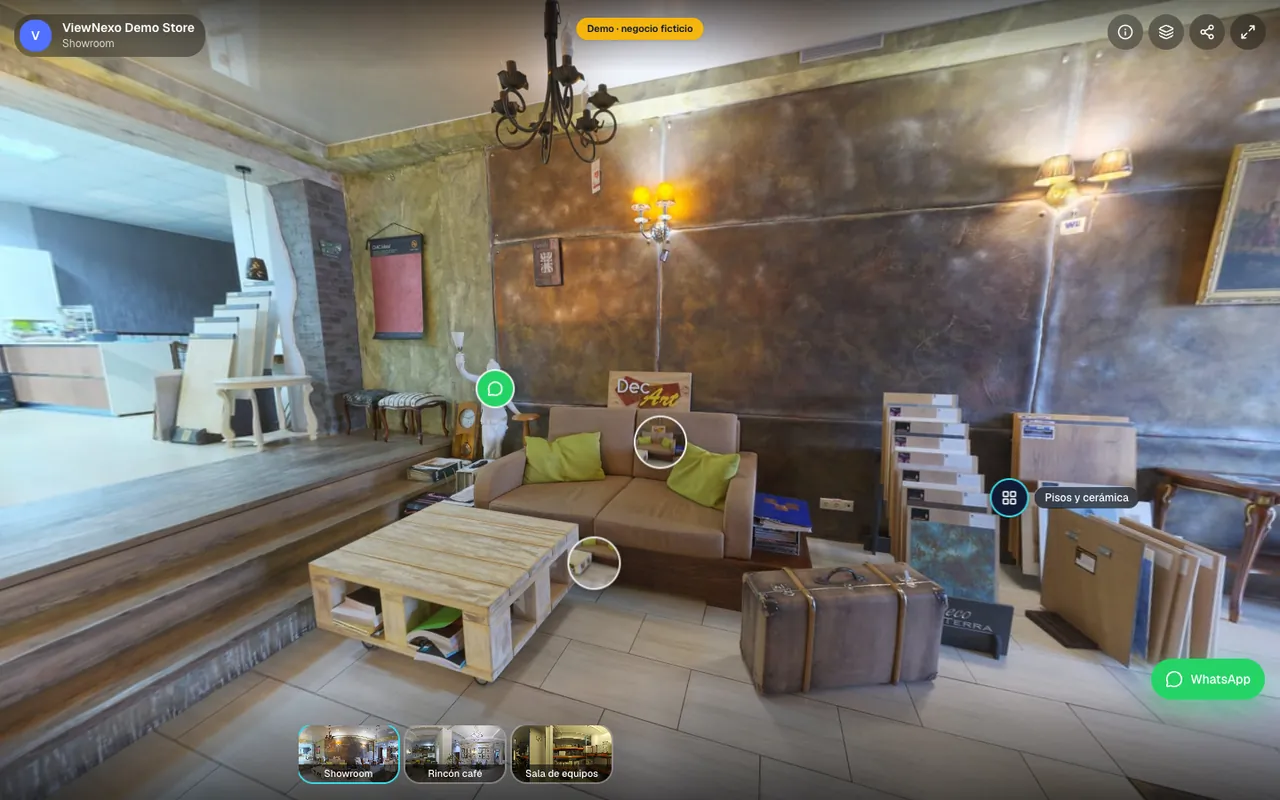
- They drag with a finger or the mouse to look around and tap the arrows to move to another scene.
- At the bottom they see the scene thumbnails; at the top right, the business info, the scene list, Share and Full screen.
- They tap the points to see products with their price, ask for information, a quote or a booking, or write to you on WhatsApp with the green button.
- If you have sales or the assistant on, they also see the cart and the chat button.
Check before sharing
- Copy the link and send it to your own WhatsApp.
- Open it from your phone, on mobile data: that is how most of your customers will see it.
- Check that the first view looks good, that the arrows lead to every scene, that prices are up to date and that the WhatsApp button opens a chat with you.
- If something is wrong, fix it in the dashboard and open the link again.