
19. Team and roles
In Team you invite the people who will help you with tours, the catalog and customers, each with their own email and password. That way nobody has to use your account.
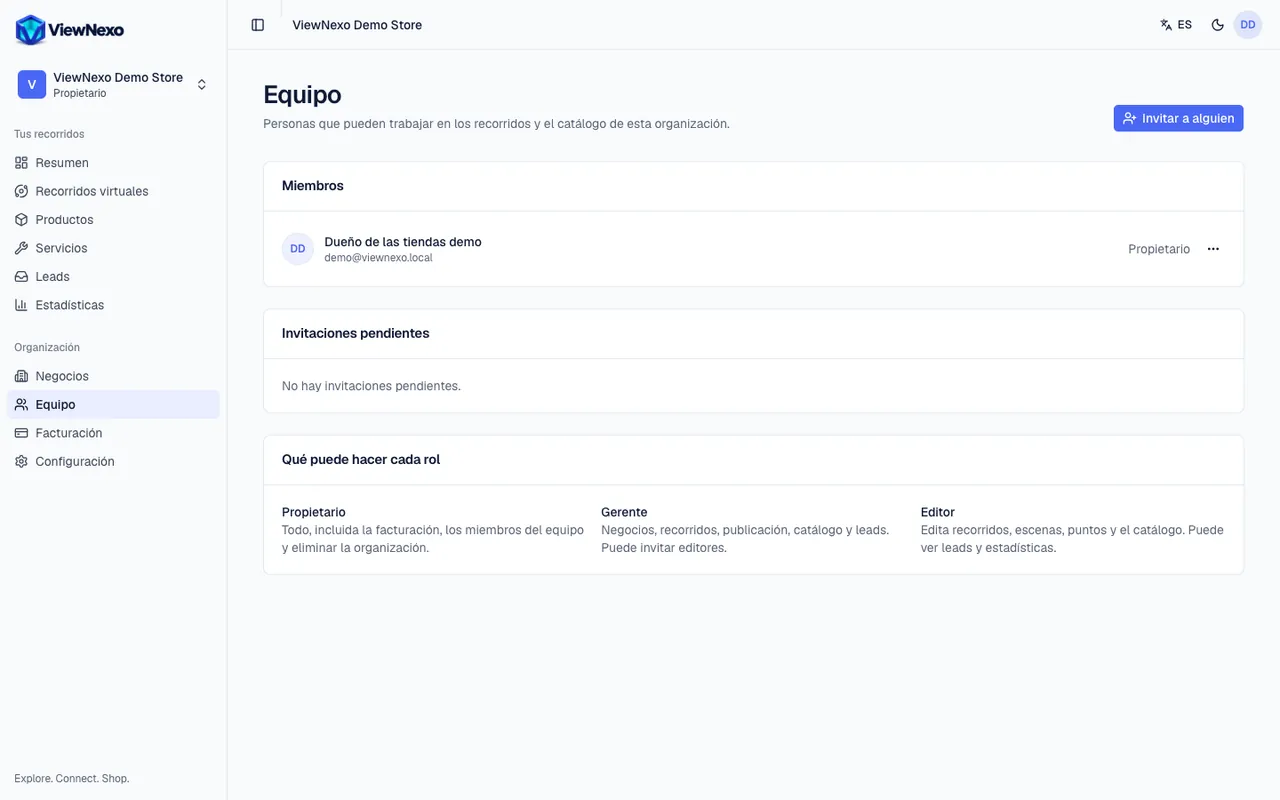
- Owner: everything, including billing, team members and deleting the organization.
- Manager: businesses, tours, publishing, catalog and leads. Can invite editors.
- Editor: edits tours, scenes, points and the catalog. Can read leads and analytics, but cannot publish tours, change the status of leads and orders, or export them.
- How many people you can have depends on your plan (Team members, under Billing). Pending invitations count too.
Invite someone step by step
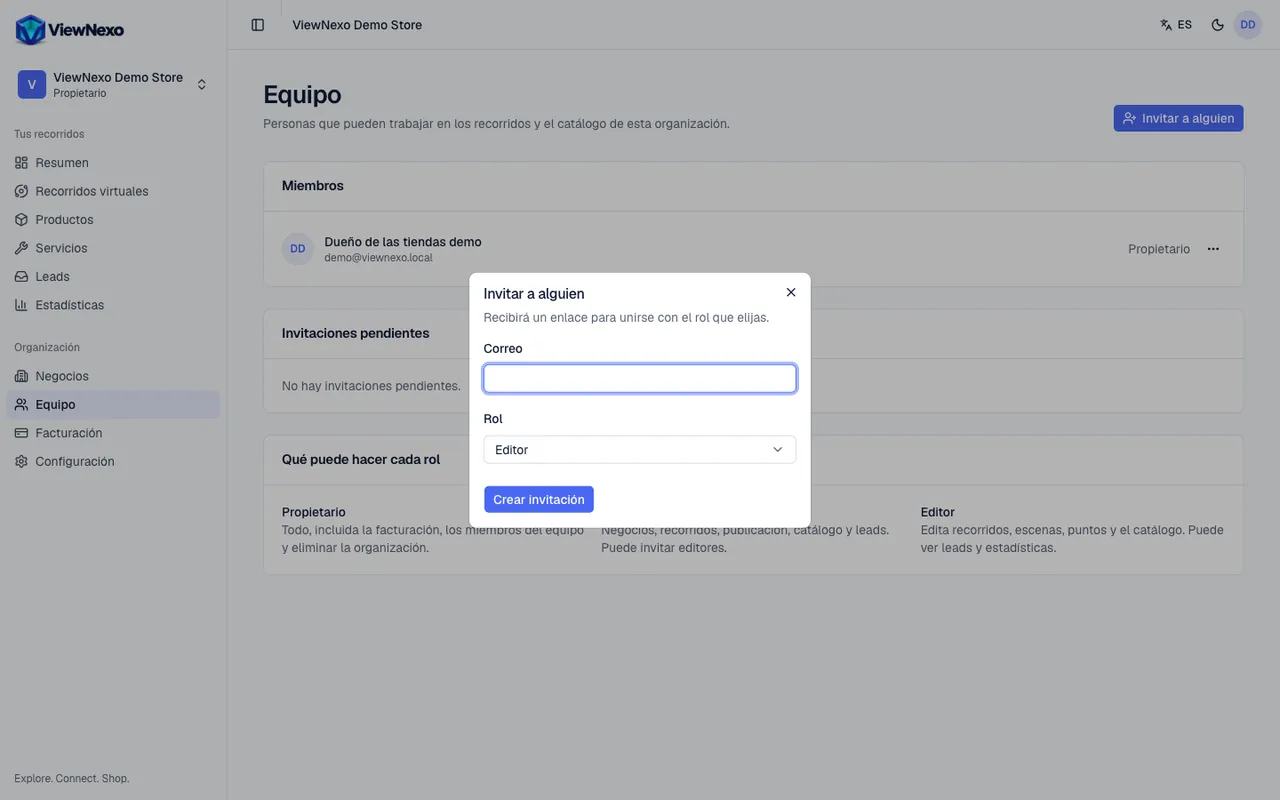
- In the left sidebar, click Team.
- Click the blue Invite someone button, top right. Only owners and managers see it.
- In Email, type the person's email. It must be the one they will use to sign in.
- In Role, pick Editor, Manager or Owner. Managers can only invite editors.
- Click Create invitation. We email the person a message with the subject You're invited to (your organization) on ViewNexo and the button Accept the invitation. The window also shows you the same link with a button to copy it.
- If the person can't find the email (ask them to check spam), click the copy button, open WhatsApp, paste the link (Ctrl+V on a computer, or press and hold in the text box and tap Paste on a phone) and send it.
- The link works once and expires in 7 days. Until they use it, the person appears under Pending invitations with the date it expires.
- If you got the email wrong or no longer want to invite them, click Revoke next to the pending invitation.
What the invited person does
- They open the invitation email and press Accept the invitation, or open the link you sent on WhatsApp. They see the Join your organization on ViewNexo page, with their email and the role you gave them.
- If they have no account: under Create your access they choose a password (at least 8 characters, with letters and numbers) and click Create access and continue.
- If they already have an account with that email: they click Sign in, enter their password and then click Accept invitation.
- If they were signed in with another email, they see a notice and the Sign out and switch account button.
- If the link expired or was revoked, they see This invitation can't be used: create a new one for them.
- When they accept, you get a notice in the bell (for example "Ana accepted your invitation") and the person appears under Members.
Change someone's role or remove them
- In Team, find the person under Members.
- Click the three dots (⋯) to the right of their role. Only owners see this button, and it doesn't appear next to your own name.
- Under Role, pick the new role. You will see the Role updated message.
- To remove them, click Remove from team and confirm. They lose access to this organization immediately; what they did (products, tours) stays.
When someone stops working with you, remove them from the team that same day.